
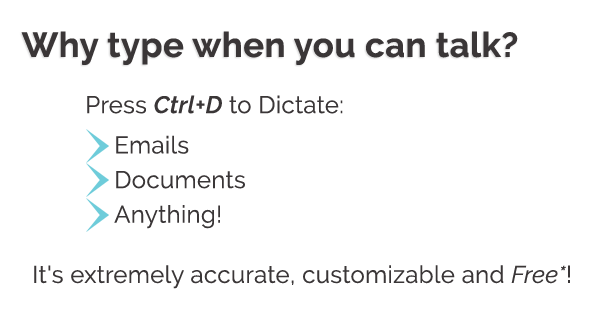



Why Type When You Can Talk?
LilySpeech is a FREE* speech to text dictation application for Windows with support for 51 languages! Experience the freedom of typing with your voice today.

Convert Voice To Text Software
Converting your spoken words into text using voice-to-text software is one of the fastest ways to create documents, emails, and content without typing. LilySpeech makes this simple and free, turning your voice into accurate text in real time across your Windows desktop, no matter what application you are using.
This guide walks you through everything you need to know to start dictating instead of typing. By the end, you will understand how to set up LilySpeech, use it effectively, and make it work with your everyday workflow. Whether you are a writer racing against a deadline, a professional managing dozens of emails, or someone looking to reduce typing strain, this tool can transform how you work.
Step 1: Download and Install LilySpeech on Your Windows Device
Start by visiting the LilySpeech website and downloading the application for Windows. The software is free and lightweight, so the installation takes just a minute. Once you open the installer, follow the on-screen prompts to complete the setup. LilySpeech does not require extensive system resources because it uses cloud-based technology to process your voice, meaning your computer stays fast and responsive even while you are dictating.
After installation finishes, launch the application. You will see a simple interface with a microphone icon and a text display area. This is your command center for all voice dictation. The first time you open it, your browser may ask permission to access your microphone, which is necessary for the software to hear you clearly. Grant this permission and you are ready to begin.
Step 2: Check Your Microphone and Audio Settings
Before you start dictating, make sure LilySpeech can hear you properly. Click on the settings or preferences menu within the application and select your microphone device from the available options. If you are using a built-in microphone on your laptop, it should be listed by default. If you have an external microphone, headset, or USB device, choose that instead for clearer audio input.
Test your microphone by clicking the record button and speaking a few sentences. Watch the text appear in real time. If words are missing or incorrect, your microphone may be too far away or the volume too low. Adjust your distance and microphone settings until you see accurate text appearing. This takes only a few minutes and ensures smooth dictation going forward.
Step 3: Position Your Microphone for Optimal Accuracy
Microphone placement makes a huge difference in how accurately LilySpeech converts your voice to text. Hold your microphone or headset about six to eight inches from your mouth, slightly to the side. This distance allows the software to capture your voice clearly without picking up too much background noise or breathing sounds. Speak naturally and at a conversational volume, not louder than you would in a normal conversation.
If you are using a laptop microphone, position your mouth directly in front of the screen and maintain the same distance throughout your dictation session. Avoid shuffling papers, typing, or other activities that create noise near your microphone while you are speaking. A quiet environment is not essential, but it helps LilySpeech understand you better and produce text with higher accuracy.
Step 4: Begin Dictating in Any Application
One of the best features of LilySpeech is that it works in almost any Windows application. Click into an email draft, word processor, search box, or text field anywhere on your desktop. Then activate LilySpeech by clicking the microphone button or using the keyboard shortcut. Start speaking and watch your words appear directly into the application as if you had typed them. The software converts voice to text in real time, so you see results instantly.
Speak in complete thoughts rather than individual words. For example, say "Please send the report by Friday" rather than "Please . send . the . report . by . Friday." LilySpeech understands natural speech patterns and punctuation commands, so you can say "period" or "question mark" to add punctuation without typing it. This approach feels more conversational and produces more natural-sounding text.
Step 5: Use Custom Word Recognition for Specialized Terminology
If you work in a field with industry-specific vocabulary, medical terminology, legal jargon, or proper nouns that LilySpeech might not recognize automatically, you can teach it custom words. Access the custom word recognition settings and add specialized terms you use regularly. For example, if you work in medicine and frequently dictate patient names or pharmaceutical terms, add them to your custom dictionary.
LilySpeech learns from these additions and becomes more accurate over time with your specific language patterns. This feature is particularly valuable for professionals like doctors, lawyers, engineers, and technical writers who need precise terminology conversion. Each custom word you add makes the software work better for your unique needs, delivering the accuracy you require without manual corrections.
Step 6: Edit and Refine Your Dictated Text
After you finish dictating, review your text for any words that may have been misunderstood. LilySpeech delivers 99.5 percent accuracy, which means in most cases your text will be correct on the first pass. However, it is always good practice to scan through for any corrections needed. Use your keyboard to make quick edits, or select text and re-dictate it if you prefer not to type.
If you notice a particular word or phrase is consistently misrecognized, add it to your custom vocabulary so it improves next time. This feedback loop means LilySpeech becomes increasingly accurate for your personal use case. After a few days of regular use, you will likely find that correction needs drop significantly and you spend more time creating and less time fixing.
Step 7: Explore Multi-Language Support for Global Communication
LilySpeech supports 51 languages, making it ideal if you work across multiple languages or communicate with international colleagues and clients. If you need to dictate in a language other than English, open the settings and select your target language from the list. The software switches seamlessly and converts voice to text in that language with the same high accuracy.
This feature is especially useful for multilingual professionals, translators, international business teams, and anyone who code-switches between languages during their workday. You can even change languages mid-session if needed. Simply switch the language setting and resume dictating. This flexibility means LilySpeech adapts to how you actually work, not the other way around.
| Feature | Benefit | Best For |
|---|---|---|
| Cloud-based processing | No heavy software load on your computer | Users with older or low-spec laptops |
| 99.5% accuracy | Minimal editing and corrections needed | Professionals who need fast turnaround |
| Custom word recognition | Specialized vocabulary understood correctly | Doctors, lawyers, technical experts |
| 51 language support | Dictate in any of 51 languages | Multilingual and international users |
| Free software | No subscription or licensing fees | Budget-conscious individuals and teams |
The key to mastering voice-to-text conversion is consistency and practice. After your first week using LilySpeech, you will develop a natural rhythm for how you speak into the microphone. You will learn the punctuation commands, discover the optimal microphone distance for your setup, and build your custom vocabulary. Within two weeks, most users report that dictating feels faster and more natural than typing.
LilySpeech is designed to be intuitive enough for first-time users while powerful enough for professionals who dictate documents all day. Because it runs on cloud technology, you get enterprise-grade accuracy without enterprise-grade costs. Because it works across any Windows application, you do not need to learn a new interface or change your workflow.
If you are ready to convert voice to text and discover how much faster you can work, LilySpeech is free to download and use immediately. There is no trial period, no credit card required, and no subscription to cancel. Get started today and experience the productivity boost that hands-free dictation brings to your daily work.
Frequently Asked Questions
How accurate is LilySpeech voice-to-text conversion?
LilySpeech delivers 99.5 percent accuracy powered by Google's Chrome speech recognition engine. This means that in most dictation sessions, your text will be correct on the first pass with minimal editing needed. Accuracy improves further when you add custom words for specialized terminology you use regularly.
Is LilySpeech truly free, or does it cost money?
LilySpeech is completely free to download, install, and use. There are no hidden subscriptions, no premium tiers to unlock, and no fees for accessing the full feature set. You can dictate unlimited documents and emails without paying anything.
Can I use voice-to-text software with languages other than English?
Yes. LilySpeech supports 51 languages, so you can dictate in English, Spanish, French, Mandarin, German, Japanese, and many other languages. You can switch languages anytime in the settings and resume dictating in your chosen language with the same high accuracy.
What applications work with LilySpeech for converting voice to text?
LilySpeech works with almost any Windows application that accepts text input. This includes email clients, word processors, web browsers, messaging apps, search boxes, and form fields. If you can type in it, you can dictate into it using LilySpeech.
Do I need special equipment to use voice-to-text software?
You need a microphone, but most laptops and computers have built-in microphones. For better accuracy and comfort, an external headset or USB microphone is recommended, but it is not required. LilySpeech works with any microphone connected to your Windows device.
How does LilySpeech handle specialized medical and legal terminology?
LilySpeech includes custom word recognition that lets you teach it specialized vocabulary specific to your industry. Medical professionals, lawyers, engineers, and other specialists can add technical terms, proper nouns, and jargon to their custom dictionary so the software recognizes them correctly every time.
Can LilySpeech work if I have limited computer resources?
Yes. Because LilySpeech uses cloud-based processing, it does not require heavy local processing power. Even older laptops or computers with limited RAM can run LilySpeech smoothly without slowing down your system.

99.5% Accurate!
LilySpeech is powered by Google Chrome’s amazing speech to text service which is 99.5% accurate. If you’ve been sending text messages with your voice on your Android phone, then you already know how well it works.
Watch the video below to see a demonstration of just how accurate LilySpeech is.

Custom Words
You can customize LilySpeech to recognize custom words. This might be business names, web addresses, the correct spelling of peoples names, industry specific terms. Anything you wish.
Even for people in specialized Industries, LilySpeech shines with its ability to recognize unusual vocabulary.
Lightweight
LilySpeech is an extremely lightweight application which will not slow down your computer or hog your computer’s memory.
This is made possible by the fact that the actual speech-to-text conversion occurs in the cloud and does not use your local machines resources.

See it in Action!
LilySpeech Speech Recognition Demo
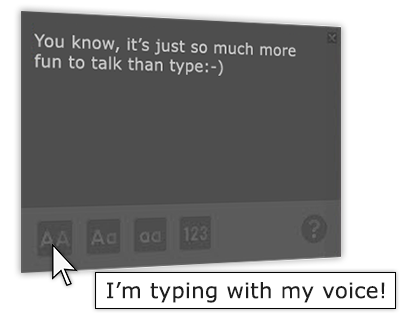
LilySpeech is truly a joy to use. Click or press Ctrl+D and start dictating absolutely anything on your computer in real time.
In this demonstration we see:
- Text dictated in real time
- Customization of display in settings
- Various punctuation
The ease of use is amazing and the time savings will have you jumping for joy!