



Why Type When You Can Talk?
LilySpeech is a FREE* speech to text dictation application for Windows with support for 51 languages! Experience the freedom of typing with your voice today.

Dictate Emails With Calligra Words
Dictating emails with Calligra Words means speaking your message aloud and watching it appear on screen as typed text, hands-free and in real time. LilySpeech makes this possible for Windows users everywhere, turning spoken words into perfectly formatted email drafts without a single keystroke.
You know the feeling: your inbox is overflowing, your fingers ache from typing, and you have ten more emails to write before lunch. The traditional way-hunt and peck, edit, delete, retype-drains your energy and slows you down. What if you could simply talk and let your computer handle the rest? That is the promise of voice dictation, and when you combine it with Calligra Words, you unlock a workflow that feels almost effortless.
This guide walks you through the entire process of using LilySpeech to dictate emails in Calligra Words. By the end, you will understand exactly how to set up the software, position your microphone, speak naturally, and send polished emails without touching your keyboard. The setup takes minutes, and the time you save compounds every single day.
1. Download and Install LilySpeech on Your Windows Computer
Start by visiting LilySpeech and downloading the application to your Windows machine. The software is free and cloud-based, so you are not installing heavy local processing resources or bloated plugins. The file is lightweight, and installation completes in under two minutes. Once installed, launch the application and you will see a clean interface with a microphone button ready to activate.
LilySpeech leverages Google's Chrome speech recognition engine, which powers the 99.5% accuracy rate you get from day one. This means no training period, no voice profiles to build, and no long wait times. Open the program, and you are ready to start speaking.
2. Open Calligra Words and Position Your Microphone
Launch Calligra Words and open a new document or begin composing your email in the application. Position your microphone about six to eight inches from your mouth, angled slightly downward. A quality USB microphone or even a good laptop built-in mic will work well, though external microphones tend to pick up less background noise and deliver clearer results. Test your audio levels in LilySpeech before you start by clicking the microphone icon and speaking a few sentences aloud.
Make sure your environment is relatively quiet. If you are in an open office or shared space, consider using headphones with an attached mic or closing your door for the duration of your dictation session. Background chatter and traffic noise can confuse speech recognition software, so a calm setting pays dividends in accuracy and speed.
3. Activate LilySpeech and Begin Speaking Your Email Naturally
Click the microphone button in LilySpeech to start recording. Begin speaking your email message in a clear, conversational tone. You do not need to pause between sentences or speak unnaturally slowly. LilySpeech transcribes in real time, so you will see your words appear in Calligra Words almost instantly as you speak. The software supports 51 languages, so if you work in multiple tongues, you can switch languages without leaving the interface.
Speak punctuation when you need it. Say "period," "comma," "question mark," or "exclamation point" to insert them naturally into your text. For example: "Thank you for your message comma I will follow up by end of week period" becomes "Thank you for your message, I will follow up by end of week." If you make a mistake, simply continue speaking and edit afterward in Calligra Words. Stopping and restarting the recording breaks your flow and wastes time.
LilySpeech also supports custom word recognition, which is invaluable if you work with specialized terminology. Medical professionals, lawyers, engineers, and industry experts can teach the software their unique vocabulary, ensuring that technical terms and proper names are always transcribed correctly. This feature eliminates one of the biggest frustrations with generic voice recognition: the constant need to manually correct specialized words.
4. Review, Edit, and Format in Calligra Words Before Sending
Once you have finished dictating, click the microphone button to stop recording. Read through your email in Calligra Words and make any final edits. Because LilySpeech delivers 99.5% accuracy powered by Google's speech recognition engine, most emails need little to no revision. Fix any words that were misheard, adjust formatting if needed, and ensure your tone comes across the way you intended. This editing pass typically takes seconds rather than minutes.
Format your email as you normally would in Calligra Words: bold important phrases, adjust spacing, add line breaks for readability. Because you are working from dictated text rather than retyping, your editing time shrinks dramatically. You are not creating from a blank page; you are refining something that already exists. Copy the finished email, paste it into your email client, add your subject line, and send. What once took fifteen minutes now takes three.
If you use custom words for your industry or profession, LilySpeech learns and applies them automatically in future dictation sessions. This means your second email is even faster than your first, and your tenth email flows with minimal editing at all.
Dictating emails with Calligra Words transforms your writing routine from a physical grind into a natural conversation with your computer. LilySpeech removes the barriers between thought and text, letting you focus on what you actually want to say rather than how fast your fingers can type. Whether you are buried in correspondence, managing hand fatigue, or simply tired of the mechanical repetition of keyboard work, this workflow delivers measurable relief and genuine productivity gains.
Ready to experience hands-free email composition? Visit LilySpeech today to download the free software and start dictating your first message. Your future self-the one with rested fingers and an empty inbox-will thank you.
Frequently Asked Questions
Does LilySpeech work with Calligra Words on Windows?
Yes. LilySpeech is a free, cloud-based application designed for Windows that integrates seamlessly with Calligra Words and any other text editor or email client. Simply open LilySpeech, click the microphone button, and dictate directly into Calligra Words. The software transcribes speech to text in real time with 99.5% accuracy.
How accurate is LilySpeech when dictating emails?
LilySpeech delivers 99.5% accuracy powered by Google's Chrome speech recognition engine. This means most emails require little to no editing after dictation. Custom word recognition allows you to teach the software specialized terminology, so technical terms and proper names are captured correctly every time.
Can I dictate emails in languages other than English?
LilySpeech supports 51 languages, so you can dictate emails in English, Spanish, French, German, Mandarin, Japanese, and dozens of others. You can switch languages within the same session without restarting the application, making it ideal for multilingual professionals and global teams.
What kind of microphone do I need to dictate emails with LilySpeech?
Any quality microphone works with LilySpeech, including built-in laptop microphones, USB headsets, and standalone condenser mics. External microphones typically deliver better accuracy because they minimize background noise. Position your microphone six to eight inches from your mouth for optimal transcription.
Is LilySpeech truly free, or does it charge for email dictation features?
LilySpeech is completely free. There are no hidden costs, subscription fees, or premium tiers for email dictation. The software is cloud-based, so you get access to powerful speech recognition without paying for local processing power or licensing expensive proprietary software.

99.5% Accurate!
LilySpeech is powered by Google Chrome’s amazing speech to text service which is 99.5% accurate. If you’ve been sending text messages with your voice on your Android phone, then you already know how well it works.
Watch the video below to see a demonstration of just how accurate LilySpeech is.

Custom Words
You can customize LilySpeech to recognize custom words. This might be business names, web addresses, the correct spelling of peoples names, industry specific terms. Anything you wish.
Even for people in specialized Industries, LilySpeech shines with its ability to recognize unusual vocabulary.
Lightweight
LilySpeech is an extremely lightweight application which will not slow down your computer or hog your computer’s memory.
This is made possible by the fact that the actual speech-to-text conversion occurs in the cloud and does not use your local machines resources.

See it in Action!
LilySpeech Speech Recognition Demo
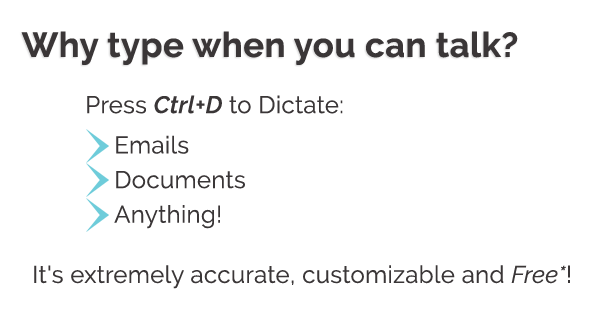
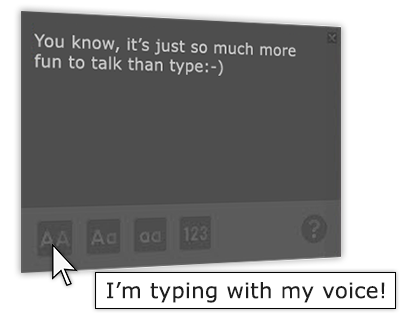
LilySpeech is truly a joy to use. Click or press Ctrl+D and start dictating absolutely anything on your computer in real time.
In this demonstration we see:
- Text dictated in real time
- Customization of display in settings
- Various punctuation
The ease of use is amazing and the time savings will have you jumping for joy!