



Why Type When You Can Talk?
LilySpeech is a FREE* speech to text dictation application for Windows with support for 51 languages! Experience the freedom of typing with your voice today.

Dictation Feature For Applix Word
Using voice dictation in word processors is transforming how professionals create documents without typing. LilySpeech brings this capability to your Windows desktop, letting you speak directly into Applix Word and watch your words appear on screen in real time. Whether you are drafting emails, writing reports, or composing lengthy documents, this hands-free approach eliminates typing fatigue and keeps your ideas flowing uninterrupted.
The process is straightforward and requires no special hardware beyond a microphone-most laptops and desktops already have one built in. LilySpeech powered by Google's speech recognition technology converts your spoken words into text with 99.5% accuracy across 51 languages, making it ideal for anyone who speaks multiple languages or works with specialized terminology.
Step 1: Download and Install LilySpeech
Start by visiting LilySpeech and downloading the free application for Windows. The installation takes just a few seconds and requires no payment or account setup. Because LilySpeech is cloud-based, it leverages Google's recognition engine rather than processing audio locally, which means you get powerful accuracy without draining your computer's resources.
Once installed, launch the application from your Windows desktop. You will see a clean, simple interface designed to stay out of your way while you work. The lightweight design means it runs smoothly alongside Applix Word without slowing your system down.
Step 2: Position Your Microphone and Open Applix Word
Ensure your microphone is positioned comfortably-typically 6 to 12 inches from your mouth at a slight angle works best. Test your microphone in Windows sound settings to confirm it is working and picking up your voice clearly. Then open Applix Word and place your cursor in the document where you want text to appear.
LilySpeech works with any text field or document editor, including Applix Word. The software integrates with your Windows system at the input level, which means it functions seamlessly regardless of which application you are using. Think of it like a translator standing beside you-whatever application is waiting for keyboard input receives your spoken words as text.
Step 3: Activate Voice Dictation and Begin Speaking
In the LilySpeech application window, click the microphone icon or press the activation hotkey to begin recording. The interface will show that dictation is active and listening. Speak naturally and at a conversational pace; there is no need to pause between words or over-enunciate.
As you speak, your words will appear in Applix Word in real time. LilySpeech handles punctuation automatically-simply say "period," "comma," or "question mark" when you need punctuation, and it will be inserted. For specialized vocabulary, you can train custom word recognition so that industry-specific terms, proper names, or technical jargon are captured accurately every time.
Because LilySpeech supports custom word recognition for specialized terminology, professionals in medicine, law, engineering, and other technical fields can dictate with confidence that their discipline-specific language will be understood correctly.
Step 4: Review, Edit, and Save Your Document
Once you have finished dictating, click the stop button in LilySpeech to end the recording session. Review the text in your Applix Word document to catch any errors-speech recognition is remarkably accurate, but context-dependent words or background noise may occasionally require a quick fix. Use your keyboard or mouse to make any edits, then save your document normally.
Many users find that dictation actually requires less total editing time than typing, because speaking is faster and more natural than typing for most people. Your hands remain free for other tasks, and you can compose longer sections without fatigue. As you use LilySpeech more regularly, the system learns your speech patterns and improves its accuracy further.
If you work across multiple languages or handle specialized terminology regularly, take time to explore LilySpeech's custom vocabulary settings. Adding your industry's key terms ensures that every dictation session produces cleaner text and reduces editing work. The software is designed with flexibility in mind, so it adapts to your unique needs rather than forcing you to adapt to it.
Ready to experience hands-free productivity? Reach out to the LilySpeech team to learn more about how dictation software can fit into your workflow. Whether you are a writer, legal professional, medical practitioner, or simply someone who would rather speak than type, LilySpeech is built to serve you.
Frequently Asked Questions
Does dictation feature for Applix Word work offline?
LilySpeech is cloud-based, which means it requires an internet connection to convert speech to text. Because it uses Google's speech recognition engine running in the cloud, you benefit from powerful, continuously updated accuracy without needing to download large language files to your computer. The trade-off is that you need reliable internet connectivity while dictating.
Can I use custom vocabulary with Applix Word dictation?
Yes. LilySpeech lets you add custom words and specialized terminology so that industry-specific language, technical terms, proper names, and jargon are recognized accurately. This is especially useful for medical professionals, lawyers, engineers, and other specialists who work with discipline-specific vocabulary daily.
What microphone do I need for LilySpeech dictation?
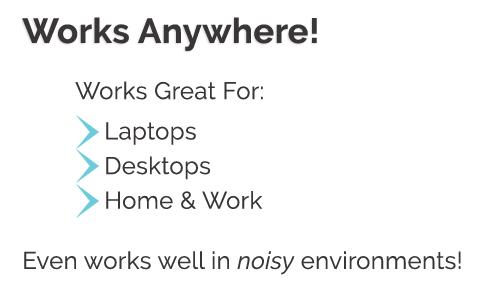
Most Windows computers have a built-in microphone that works fine with LilySpeech. If you use an external USB microphone or headset, test it first in Windows sound settings to confirm it is selected as the default input device. Any standard microphone designed for voice communication will work reliably.

99.5% Accurate!
LilySpeech is powered by Google Chrome’s amazing speech to text service which is 99.5% accurate. If you’ve been sending text messages with your voice on your Android phone, then you already know how well it works.
Watch the video below to see a demonstration of just how accurate LilySpeech is.

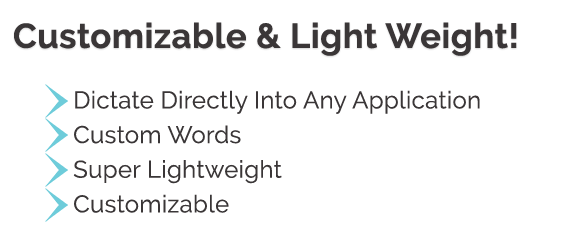
Custom Words
You can customize LilySpeech to recognize custom words. This might be business names, web addresses, the correct spelling of peoples names, industry specific terms. Anything you wish.
Even for people in specialized Industries, LilySpeech shines with its ability to recognize unusual vocabulary.

Lightweight
LilySpeech is an extremely lightweight application which will not slow down your computer or hog your computer’s memory.
This is made possible by the fact that the actual speech-to-text conversion occurs in the cloud and does not use your local machines resources.

See it in Action!
LilySpeech Speech Recognition Demo
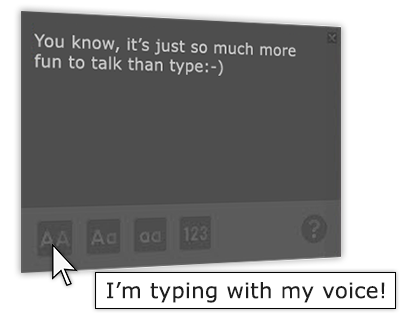
LilySpeech is truly a joy to use. Click or press Ctrl+D and start dictating absolutely anything on your computer in real time.
In this demonstration we see:
- Text dictated in real time
- Customization of display in settings
- Various punctuation
The ease of use is amazing and the time savings will have you jumping for joy!