



Why Type When You Can Talk?
LilySpeech is a FREE* speech to text dictation application for Windows with support for 51 languages! Experience the freedom of typing with your voice today.

Dictation Software
Dictation software converts your spoken words into written text in real time, letting you compose emails, documents, and web content without typing a single character. If you've ever felt the strain of endless typing or wished you could work faster, voice recognition software offers a genuinely hands-free alternative that works right from your Windows desktop.
LilySpeech provides free, cloud-based dictation tools that use advanced speech recognition to capture your words with 99.5% accuracy. Whether you're a writer facing deadline pressure, a professional juggling multiple documents, or someone who simply wants to reduce typing fatigue, learning to use dictation software properly can transform how you work. This guide walks you through the entire process, from download to confident daily use.
Step 1: Download and Install LilySpeech on Your Windows Device
Getting started is straightforward. Head to the LilySpeech website and download the application for Windows. The file is lightweight and won't consume significant disk space or processing power, since all the heavy lifting happens in the cloud. Once the download completes, run the installer and follow the on-screen prompts. Installation takes just a few minutes and requires no technical expertise.
After installation finishes, launch the application and you'll see a simple, uncluttered interface. No complicated settings or confusing menus-just a clean window ready for you to start speaking. The application launches from your system tray, so it's always accessible without cluttering your screen.
Step 2: Position Your Microphone and Test Your Audio Setup
Your microphone quality directly affects how accurately the software transcribes your words. Use a decent quality microphone-a built-in laptop mic works, but a USB headset or external microphone yields noticeably better results. Position the microphone about six to eight inches from your mouth, slightly off to the side rather than directly in front. This angle reduces plosives and background noise pickup.
Before you start dictating important work, run a quick test. Speak a full sentence naturally and watch as the text appears on screen. Listen for any words that came through wrong. If certain words consistently miss or distort, you can teach the software to recognize your personal vocabulary through custom word recognition. This feature proves invaluable for industry-specific terminology, proper names, or technical jargon that general speech recognition might struggle with. Once you've added these custom words, the application learns your preferences and accuracy improves dramatically.
Step 3: Begin Dictating and Use voice commands Effectively
The core workflow is simple: click in any text field on your screen-an email draft, a document, a search bar-then start speaking. The software transcribes your words in real time, displaying them instantly. Speak naturally at a comfortable pace. You don't need to pause between sentences or enunciate with unnatural precision; conversational speech works best.
To maximize productivity, learn basic voice commands that let you control formatting without touching your keyboard:
- Say "period" or "full stop" to end a sentence
- Say "comma" to insert punctuation
- Say "new line" or "new paragraph" to create breaks
- Say "question mark" when asking a question
- Use natural phrasing like "all caps" or "lowercase" to adjust text formatting
Because LilySpeech supports 51 languages, multilingual professionals can switch between languages mid-session. If you're composing in multiple languages or addressing an international audience, the software adapts without requiring manual reconfiguration. This flexibility makes it especially useful for global teams, translators, and anyone who works across language boundaries.
Start with shorter dictation sessions to build confidence and develop a feel for the software's rhythms. Many users find that after just a few sessions, dictation becomes second nature. Your hands stay free, your eyes stay on the screen, and your ideas flow directly into text without the friction of typing.
Frequently Asked Questions
What accuracy rate does LilySpeech achieve with dictation software?
LilySpeech delivers 99.5% accuracy powered by Google's advanced speech recognition engine. This high accuracy is maintained across all 51 supported languages and works reliably for general vocabulary as well as custom industry-specific terms you train the software to recognize.
Is dictation software free, or does it require a subscription?
LilySpeech's dictation software is completely free. There are no hidden fees, premium tiers, or subscription requirements. You get full access to cloud-based transcription, voice commands, and custom word recognition at no cost.
Can I use voice recognition software for specialized terminology and industry jargon?
Yes. LilySpeech includes custom word recognition that lets you teach the software to understand industry-specific vocabulary, medical terms, legal language, technical jargon, or any specialized words your profession requires. Once trained, the software recognizes these terms consistently.
How many languages does LilySpeech's voice typing software support?
LilySpeech supports 51 languages, making it ideal for multilingual professionals, global teams, and anyone who needs to dictate in languages beyond English. You can switch between languages during a session without restarting the application.
What type of microphone do I need for accurate dictation?
Any microphone works, but quality varies. Built-in laptop microphones are functional, while USB headsets or external microphones deliver noticeably better accuracy. Position your microphone 6-8 inches from your mouth at a slight angle to minimize background noise and plosive sounds.
Can voice to text software work offline or does it require internet?
LilySpeech is cloud-based, so it requires an active internet connection to convert your speech to text. The cloud processing means your Windows device doesn't need powerful local resources-even older computers run the software smoothly.
Who benefits most from using dictation software?
Writers, journalists, medical professionals, legal practitioners, executives, students, and anyone with typing fatigue benefit significantly. Voice recognition software also serves people with mobility limitations and anyone seeking hands-free productivity. Essentially, anyone who creates text-based content works faster and more comfortably with dictation.

99.5% Accurate!
LilySpeech is powered by Google Chrome’s amazing speech to text service which is 99.5% accurate. If you’ve been sending text messages with your voice on your Android phone, then you already know how well it works.
Watch the video below to see a demonstration of just how accurate LilySpeech is.

Custom Words
You can customize LilySpeech to recognize custom words. This might be business names, web addresses, the correct spelling of peoples names, industry specific terms. Anything you wish.
Even for people in specialized Industries, LilySpeech shines with its ability to recognize unusual vocabulary.
Lightweight
LilySpeech is an extremely lightweight application which will not slow down your computer or hog your computer’s memory.
This is made possible by the fact that the actual speech-to-text conversion occurs in the cloud and does not use your local machines resources.

See it in Action!
LilySpeech Speech Recognition Demo
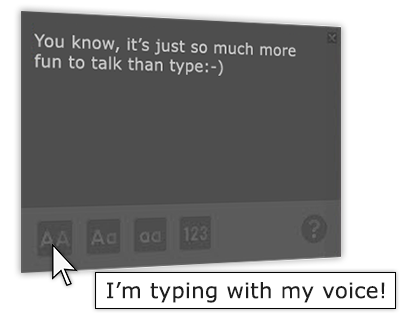
LilySpeech is truly a joy to use. Click or press Ctrl+D and start dictating absolutely anything on your computer in real time.
In this demonstration we see:
- Text dictated in real time
- Customization of display in settings
- Various punctuation
The ease of use is amazing and the time savings will have you jumping for joy!