



Why Type When You Can Talk?
LilySpeech is a FREE* speech to text dictation application for Windows with support for 51 languages! Experience the freedom of typing with your voice today.

Speech Recognition Pdf
Converting spoken words into text within PDF documents or creating PDFs through voice dictation is easier than you might think. LilySpeech makes speech recognition for PDF workflows simple by letting you dictate directly into your Windows desktop, then export or paste your content wherever you need it-including into PDF editors and document management systems. No expensive software required. No complicated setup. Just your voice and accurate, real-time transcription.
Whether you're a legal professional documenting case notes, a medical practitioner recording patient observations, a journalist capturing interview transcripts, or a student taking lecture notes, this guide walks you through using LilySpeech to streamline your PDF-based work. By the end, you'll know exactly how to capture your spoken words and integrate them into your PDF workflow.
Step 1: Download and Install LilySpeech on Your Windows Computer
Start by visiting LilySpeech and downloading the free application directly to your Windows desktop. The software is lightweight and cloud-based, so it won't bog down your system or require extensive local storage. Installation takes just a few clicks-no technical knowledge needed. Once installed, open the application and you're ready to begin dictating.
LilySpeech uses Google's Chrome speech recognition engine running in the cloud, which means you don't have to worry about processing power or complex configuration. The application launches instantly, and because everything happens in real time, you'll see your words appear on screen as you speak them with 99.5% accuracy.
Step 2: Set Up Your Microphone and Language Preferences
Before you start dictating, make sure your microphone is working and set to your preferred language. LilySpeech supports 51 languages, so whether you work in English, Spanish, Mandarin, German, or any of dozens of other languages, you can configure the software to match your needs. Click your language preference in the settings-this takes seconds and applies immediately.
Test your microphone by speaking a few words into it. You'll see the text appear in LilySpeech's text window right away. If the words don't appear, check that your microphone is plugged in, unmuted, and that you've granted LilySpeech microphone permissions in Windows. Most issues resolve with a quick permissions check in your system settings.
Step 3: Dictate Your Content Using Custom Word Recognition
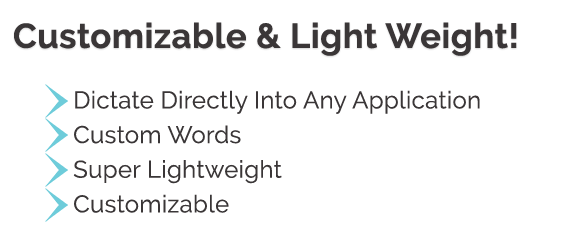
Now comes the core of your speech recognition workflow. Open LilySpeech and begin speaking naturally into your microphone. The software transcribes your words in real time as you talk, displaying them in the application window. For professionals working with specialized terminology-medical codes, legal phrases, technical jargon, or industry-specific vocabulary-LilySpeech includes custom word recognition that learns your preferred terms and spellings.
If you work in a field with repeated technical language, take a few minutes to add those terms to your custom vocabulary. LilySpeech will recognize them accurately every time you use them, eliminating manual corrections and saving time. As you dictate longer passages, sections, or entire documents, the software maintains accuracy whether you're speaking for thirty seconds or thirty minutes. Use natural pauses between thoughts; the software is smart enough to know when you're taking a breath versus when you're done speaking.
Step 4: Export Your Dictated Text to PDF or PDF-Compatible Formats
Once you've finished dictating, copy your transcribed text directly from the LilySpeech window. You have several options for getting this content into your PDF workflow:
- Paste the text into a PDF editor like Adobe Acrobat or free alternatives that accept text input, then save as PDF
- Copy the text into Microsoft Word, Google Docs, or LibreOffice, format it as needed, and export as PDF
- Paste directly into web-based PDF tools that accept text input
- Use the text in document management systems that convert to PDF automatically
Because LilySpeech delivers clean, accurately transcribed text, you'll spend minimal time editing or reformatting. The 99.5% accuracy rate means very few corrections are needed-you're not fighting with garbled text or spending hours proofreading. For professionals who create PDFs regularly, this efficiency compounds quickly, saving hours each week that you can redirect toward more valuable work.
LilySpeech is free to use, cloud-based, and designed specifically for people who want the power of professional speech recognition without the premium price tag or learning curve. Whether you're capturing one quick memo or dozens of documents daily, the workflow remains straightforward and reliable. If you're ready to eliminate typing fatigue and accelerate your document creation process, reach out to LilySpeech to get started today. The team is happy to answer questions about how voice dictation can fit into your specific workflow.
Frequently Asked Questions
Can LilySpeech convert speech recognition for PDF files directly?
LilySpeech transcribes your spoken words into text with 99.5% accuracy in real time. You then copy that text and paste it into any PDF editor, word processor, or PDF conversion tool. While LilySpeech doesn't save directly to PDF format, it delivers clean, transcribed text that makes creating or editing PDFs straightforward.
What languages does LilySpeech support for speech recognition?
LilySpeech supports 51 languages, so you can dictate in English, Spanish, Mandarin, German, French, and many others. Simply select your preferred language in the settings before you start dictating. The software switches languages instantly without reinstalling or restarting.
Is LilySpeech free, or does it require a subscription?
LilySpeech is completely free. There are no hidden fees, premium tiers, or subscription charges. You download the software once and use it without limits. The cloud-based technology behind it handles all the heavy lifting, so you get professional-grade speech recognition at no cost.
How accurate is speech recognition for specialized medical or legal terminology?
LilySpeech achieves 99.5% accuracy overall and includes custom word recognition specifically designed for industry-specific vocabulary. Medical professionals, lawyers, and other specialists can teach the software their specialized terms, and it will recognize and transcribe them correctly every time you use them.

99.5% Accurate!
LilySpeech is powered by Google Chrome’s amazing speech to text service which is 99.5% accurate. If you’ve been sending text messages with your voice on your Android phone, then you already know how well it works.
Watch the video below to see a demonstration of just how accurate LilySpeech is.

Custom Words
You can customize LilySpeech to recognize custom words. This might be business names, web addresses, the correct spelling of peoples names, industry specific terms. Anything you wish.
Even for people in specialized Industries, LilySpeech shines with its ability to recognize unusual vocabulary.
Lightweight
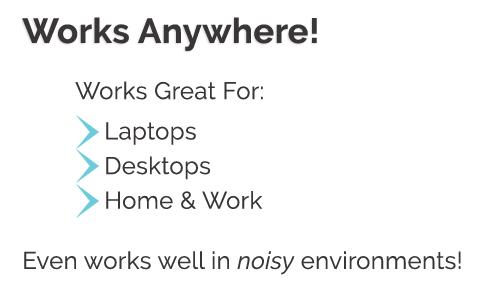
LilySpeech is an extremely lightweight application which will not slow down your computer or hog your computer’s memory.
This is made possible by the fact that the actual speech-to-text conversion occurs in the cloud and does not use your local machines resources.

See it in Action!
LilySpeech Speech Recognition Demo
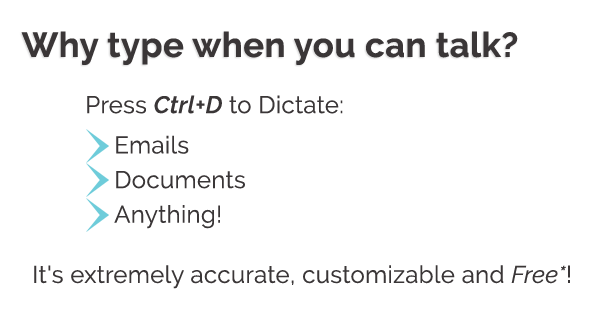
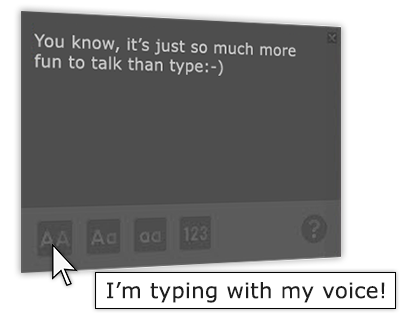
LilySpeech is truly a joy to use. Click or press Ctrl+D and start dictating absolutely anything on your computer in real time.
In this demonstration we see:
- Text dictated in real time
- Customization of display in settings
- Various punctuation
The ease of use is amazing and the time savings will have you jumping for joy!