



Why Type When You Can Talk?
LilySpeech is a FREE* speech to text dictation application for Windows with support for 51 languages! Experience the freedom of typing with your voice today.

Type With My Voice In Onlyoffice
Typing with your voice in Onlyoffice lets you compose documents, emails, and spreadsheets entirely through speech recognition, eliminating manual keyboard input and reducing strain. LilySpeech makes this process straightforward by integrating cloud-based speech-to-text technology directly with your Windows desktop, delivering 99.5% accuracy powered by Google's speech recognition engine.
This guide walks you through the complete process of setting up and using voice dictation in Onlyoffice. Whether you're a writer facing typing fatigue, a professional managing back-to-back emails, or anyone seeking to work faster and smarter, voice typing transforms your productivity. LilySpeech handles the technical complexity behind the scenes, so you can focus on what you're saying rather than how you're typing it.
Step 1: Download and Install LilySpeech on Your Windows Machine
Start by visiting the LilySpeech website and downloading the application to your Windows computer. The installation process is lightweight and straightforward-LilySpeech uses cloud-based processing rather than consuming local system resources, so setup takes seconds even on older machines. Once installed, launch the application and you'll see the main dictation interface ready to capture your voice input.
LilySpeech works as a standalone Windows application that communicates with Onlyoffice and other text editors through your system clipboard and keyboard input. No special drivers or complex configuration is required. The application starts automatically after installation and sits quietly in your system tray until you need it.
Step 2: Configure Language and Custom Vocabulary Settings
LilySpeech supports 51 languages, so select the language you'll be dictating in from the application's settings menu. If you work in multiple languages, you can switch between them without restarting. Beyond language selection, the real power lies in custom word recognition-this is where LilySpeech distinguishes itself from generic speech recognition.
Add industry-specific terminology, proper names, technical jargon, and specialized vocabulary that your field uses regularly. If you're a medical professional dictating into Onlyoffice, add pharmaceutical names and anatomical terms. If you're a legal writer, add case names and legal concepts. Because LilySpeech learns your custom words, it recognizes them with high accuracy every time you use them. This customization ensures that when you type with your voice in Onlyoffice, the software understands your domain-specific language precisely.
Step 3: Open Onlyoffice and Begin Dictating
Open Onlyoffice Writer, Calc, or Impress-whichever document type you're working in-and click into the text area where you want to start typing. Switch to the LilySpeech application window and click the record button (usually a microphone icon) to begin capturing your voice. Speak naturally and at a conversational pace; LilySpeech converts your words to text in real time and passes them directly into your active Onlyoffice document.
Key features to use as you dictate:
- Pause between sentences to let the software process and display text clearly
- Use voice commands like "period," "comma," or "new line" to control punctuation and formatting
- Speak numbers as words ("twenty-three") or digits ("two three")-LilySpeech interprets both correctly
- Stop recording when you need to edit or review; resume dictation whenever you're ready
- Leverage the custom vocabulary you configured so technical terms appear correctly without manual correction
Because LilySpeech runs on cloud-based conversion technology, your speech reaches Google's speech recognition engine for processing, then returns as text to your Onlyoffice document. This cloud architecture also means you don't experience slowdowns or lag-the entire process happens so quickly that text appears almost simultaneously with your speech.
If you need to correct a mistake, simply click in the Onlyoffice document to place your cursor, edit manually, and resume dictation. Many users find that the 99.5% accuracy rate means minimal corrections are needed. For those with mobility limitations, voice typing through LilySpeech eliminates the physical demand of keyboard entry entirely, making document creation accessible and comfortable.
Ready to experience hands-free productivity? Reach out to LilySpeech to get started today. The application is free to download and use, with no subscription fees or licensing costs. Contact the team to learn more about how voice dictation can transform your workflow in Onlyoffice.
Frequently Asked Questions
Does LilySpeech work with Onlyoffice on Windows?
Yes. LilySpeech is designed for Windows and integrates seamlessly with Onlyoffice. Simply open Onlyoffice, click into your document, and use LilySpeech to begin dictating. The speech-to-text conversion happens in real time and feeds directly into your Onlyoffice application.
How accurate is LilySpeech when typing with your voice?
LilySpeech delivers 99.5% accuracy by leveraging Google's Chrome speech recognition engine. When you've configured custom vocabulary for your industry or field, accuracy improves even further because the software learns your specialized terminology and recognizes it consistently.
Can I use LilySpeech to type with my voice in multiple languages?
Yes. LilySpeech supports 51 languages and allows you to switch between them in settings. You can dictate in any supported language without reinstalling or restarting the application, making it ideal for multilingual professionals and global teams.
What happens if LilySpeech misrecognizes a word while I'm dictating into Onlyoffice?
Since LilySpeech delivers 99.5% accuracy, misrecognitions are rare, especially with custom vocabulary enabled. When they do occur, simply pause dictation, click into the Onlyoffice document to edit the word manually, and resume recording. The process is quick and doesn't interrupt your workflow significantly.
Is LilySpeech free to use for typing with your voice in Onlyoffice?
Yes. LilySpeech is completely free, cloud-based dictation software with no subscription fees, licensing costs, or hidden charges. This makes it an affordable alternative to premium speech recognition solutions while maintaining professional-grade accuracy and functionality.

99.5% Accurate!
LilySpeech is powered by Google Chrome’s amazing speech to text service which is 99.5% accurate. If you’ve been sending text messages with your voice on your Android phone, then you already know how well it works.
Watch the video below to see a demonstration of just how accurate LilySpeech is.

Custom Words
You can customize LilySpeech to recognize custom words. This might be business names, web addresses, the correct spelling of peoples names, industry specific terms. Anything you wish.
Even for people in specialized Industries, LilySpeech shines with its ability to recognize unusual vocabulary.

Lightweight
LilySpeech is an extremely lightweight application which will not slow down your computer or hog your computer’s memory.
This is made possible by the fact that the actual speech-to-text conversion occurs in the cloud and does not use your local machines resources.

See it in Action!
LilySpeech Speech Recognition Demo
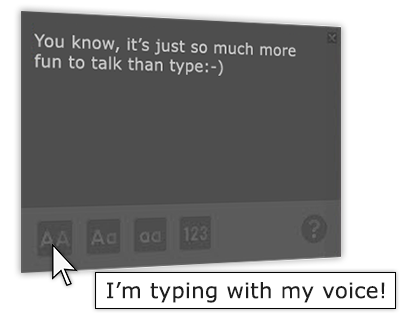
LilySpeech is truly a joy to use. Click or press Ctrl+D and start dictating absolutely anything on your computer in real time.
In this demonstration we see:
- Text dictated in real time
- Customization of display in settings
- Various punctuation
The ease of use is amazing and the time savings will have you jumping for joy!