



Why Type When You Can Talk?
LilySpeech is a FREE* speech to text dictation application for Windows with support for 51 languages! Experience the freedom of typing with your voice today.

Voice To Text For Trelby
Voice to text for Trelby lets screenwriters, producers, and creative professionals in this California film hub dictate scripts, notes, and dialogue directly into Trelby without touching the keyboard. LilySpeech makes this possible with free, cloud-based speech recognition that converts your words into text in real time, powered by Google's speech engine and supporting 51 languages.
If you've ever sat at your desk in Trelby, staring at a blank script, your fingers already sore from typing, you know the friction. The words are there in your head. The story is alive. But getting it from your voice to the page feels like it should be faster, easier, less painful. That's where this approach changes everything. By the end of this guide, you'll know exactly how to set up voice dictation in Trelby and start writing hands-free.
Step 1: Download and Install LilySpeech on Your Windows Machine
Start by visiting LilySpeech.com and downloading the application for your Windows desktop. The software is free, lightweight, and requires no installation of heavy local processing systems. Once downloaded, run the installer and follow the on-screen prompts. You'll be ready to dictate within minutes. The cloud-based architecture means your computer doesn't need to handle the heavy lifting of speech recognition-that happens securely in the cloud.
After installation completes, launch LilySpeech and allow it to access your microphone when prompted. This permission is essential for the software to hear your voice. If you're unsure about microphone settings in Trelby or anywhere else, check your Windows sound settings to ensure your microphone is active and set as the default input device.
Step 2: Choose Your Language and Set Up Custom Vocabulary
LilySpeech supports 51 languages, so select the language you'll be dictating in-whether that's English, Spanish, French, or another option. Once selected, move into the custom word recognition feature. This is where the software becomes genuinely powerful for screenwriters and industry professionals. Add any specialized terminology, character names, production company names, or technical jargon specific to your projects.
For example, if you're working on a Trelby script about a medical drama, add medical terms, character names like "Dr. Kellerman," and any recurring phrases your dialogue uses. Because LilySpeech learns your custom vocabulary, it will recognize these words far more accurately than generic speech recognition would. This custom vocabulary feature eliminates the frustration of dictating specialized terms only to find them misspelled in your document.
Step 3: Open Trelby and Position the LilySpeech Window
Launch Trelby and open the script you want to work on, or create a new one. Position your windows side by side: Trelby on one side of your screen and the LilySpeech dictation window on the other. This arrangement lets you see both applications without constantly switching between them. Click into the text field or scene description area in Trelby where you want to begin dictating.
Then activate the LilySpeech microphone by clicking the "Start Listening" button. The software will begin listening for your voice and converting it to text in real time with 99.5% accuracy. Watch as your words appear in the Trelby window without your fingers touching the keyboard. The lag is minimal, and the experience feels natural-almost like someone is transcribing as you speak.
Step 4: Dictate Your Script and Use Voice Commands
Start speaking your dialogue, action lines, or parenthetical notes directly into the microphone. Speak naturally, at a comfortable pace. LilySpeech handles most accents and speaking speeds effectively. When you need to add punctuation, you can either pause and manually insert it, or if the software offers voice commands for your language, use spoken punctuation cues like "period," "comma," or "question mark."
As you dictate longer sections, LilySpeech's cloud processing keeps pace with your speech. Because the software is cloud-based, it doesn't strain your computer's resources, so you can keep dictating without slowdown even during longer writing sessions. Many Trelby users in the screenwriting community find they can complete first drafts significantly faster when they switch to voice dictation, since speaking naturally often flows faster than typing.
Step 5: Edit and Refine Your Text in Trelby
After you've dictated a section, review what LilySpeech produced in your Trelby document. While the accuracy is high, natural speech sometimes produces small errors or homophone confusion that require manual correction. Click into Trelby, select any text that needs adjustment, and type or delete as needed. This editing phase is much faster than creating the initial draft would have been, because you've already captured the bulk of your ideas in spoken form.
Use Trelby's native formatting tools to adjust scene headings, action blocks, and dialogue as you refine. The beauty of this workflow is that LilySpeech handles the volume of text creation-the part that exhausts your hands and pulls your focus away from the story-while you handle the craft-level editing that actually requires your attention and judgment. For professionals in Trelby and beyond who write frequently, this division of labor transforms productivity and reduces the physical strain of long writing sessions.
Frequently Asked Questions
Is LilySpeech's voice to text software truly free for use with Trelby?
Yes, LilySpeech is completely free. There are no subscription fees, hidden costs, or premium tiers required to use voice dictation with Trelby or any other Windows application. You download the software, install it, and start dictating immediately at no cost.
What level of accuracy can screenwriters in Trelby expect from this dictation method?
LilySpeech delivers 99.5% accuracy powered by Google's speech recognition engine. For screenwriting, this means dialogue and action lines are captured correctly the vast majority of the time, though you'll still want to proofread and edit, especially for specialized character names or industry terminology that you haven't yet added to your custom vocabulary.
Can I use voice to text for Trelby if I don't speak English as my first language?
LilySpeech supports 51 languages and handles accents well. Select your preferred language during setup, and the software will recognize and convert your speech accurately. If you're multilingual and work in multiple languages, you can switch languages in the software settings between dictation sessions.
Does voice dictation for Trelby require special hardware or a high-end microphone?
No. Any standard microphone that works with Windows will function with LilySpeech. Many users start with their built-in laptop microphone and later upgrade to a dedicated USB microphone for better clarity. The cloud-based processing means your computer's hardware doesn't need to be powerful-the speech recognition happens in the cloud.

99.5% Accurate!
LilySpeech is powered by Google Chrome’s amazing speech to text service which is 99.5% accurate. If you’ve been sending text messages with your voice on your Android phone, then you already know how well it works.
Watch the video below to see a demonstration of just how accurate LilySpeech is.

Custom Words
You can customize LilySpeech to recognize custom words. This might be business names, web addresses, the correct spelling of peoples names, industry specific terms. Anything you wish.
Even for people in specialized Industries, LilySpeech shines with its ability to recognize unusual vocabulary.
Lightweight
LilySpeech is an extremely lightweight application which will not slow down your computer or hog your computer’s memory.
This is made possible by the fact that the actual speech-to-text conversion occurs in the cloud and does not use your local machines resources.

See it in Action!
LilySpeech Speech Recognition Demo
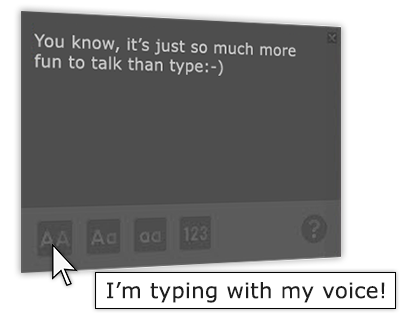
LilySpeech is truly a joy to use. Click or press Ctrl+D and start dictating absolutely anything on your computer in real time.
In this demonstration we see:
- Text dictated in real time
- Customization of display in settings
- Various punctuation
The ease of use is amazing and the time savings will have you jumping for joy!