



Why Type When You Can Talk?
LilySpeech is a FREE* speech to text dictation application for Windows with support for 51 languages! Experience the freedom of typing with your voice today.

English Voice To Text Software
Converting spoken words into written text using English voice to text software lets you dictate emails, documents, and web content directly from your Windows desktop without touching the keyboard. LilySpeech provides a free, cloud-based dictation application that captures your voice with 99.5% accuracy, powered by Google's speech recognition engine, and transforms it into text in real time.
Whether you're a writer working on long-form content, a legal professional drafting contracts, a medical practitioner recording patient notes, or simply someone tired of typing fatigue, this guide walks you through every step of getting started with voice dictation. By the end, you'll have a fully functional hands-free workflow that saves hours each week.
Step 1: Download and Install LilySpeech on Your Windows Computer
Start by visiting the LilySpeech website and downloading the application to your Windows PC. The software is lightweight and cloud-based, so it won't consume significant local storage or processing power. Once the installer downloads, run the setup file and follow the on-screen prompts. The installation takes just a few minutes and requires no technical expertise.
After installation completes, launch LilySpeech from your desktop or Start menu. The interface is clean and intuitive, designed so you can begin dictating immediately without learning complicated menus or settings. You'll see a simple window with a microphone button that's your gateway to hands-free text entry.
Step 2: Grant Microphone Permissions and Test Your Audio Input
When you first open LilySpeech, Windows will ask permission to access your microphone. Click "Allow" to enable the application to capture your voice. This is a standard security step that protects your privacy while letting the software do its job.
Next, test your microphone by speaking a few sentences into it while the application listens. Speak naturally and at a moderate pace, as if you're having a conversation. LilySpeech will display your words on screen in real time, confirming that your audio input is working correctly and the cloud-based conversion is functioning. If the text appears with delays or errors, check that your microphone isn't blocked and that your internet connection is stable.
Step 3: Position Your Microphone for Optimal Accuracy
Microphone placement significantly affects recognition accuracy. Position your microphone 6 to 12 inches from your mouth, slightly to the side rather than directly in front. This angle reduces plosive sounds (harsh "p" and "b" sounds) that can confuse voice recognition. If you're using a built-in laptop microphone, sit upright and angle the screen toward you naturally.
Environmental noise matters too. Dictate in a quiet space free from background chatter, keyboard clicks, or fan noise. If you work in an open office, consider using a headset microphone, which isolates your voice and dramatically improves accuracy. LilySpeech's 99.5% accuracy rate is achievable when audio input is clear and consistent.
Step 4: Activate Voice Dictation in Your Target Application
LilySpeech works across any Windows application where you'd normally type: email clients, word processors, web browsers, note-taking apps, and messaging platforms. Click in the text field where you want your dictation to appear, then click the microphone button in the LilySpeech window to begin recording. The application captures everything you say and converts it to text in real time.
Speak your content naturally without pausing between sentences. The software handles punctuation and capitalization automatically. If you need to add punctuation manually, say the punctuation name aloud-for example, "period" or "comma"-and LilySpeech will insert it at the cursor position.
Step 5: Use Custom Word Recognition for Specialized Terminology
One of LilySpeech's most powerful features is custom word recognition, which learns industry-specific terminology and proper nouns unique to your work. If you're a medical professional, you can train the software to recognize medical terms. Legal practitioners can add case names and legal jargon. Journalists can include publication names and subject-specific vocabulary.
To add custom words, access the LilySpeech settings menu and navigate to vocabulary management. Enter specialized terms, acronyms, or names you use frequently. The more you train the software, the smarter it becomes. Because LilySpeech learns your personal and professional language patterns, accuracy improves over time, often reaching near-perfect recognition for your domain-specific work.
Step 6: Leverage Multi-Language Support for Global Content
LilySpeech supports 51 languages, making it ideal for multilingual users, international teams, and content creators working across language boundaries. If you need to dictate in a language other than English, open the LilySpeech settings and select your target language from the dropdown menu. The software switches instantly, ready to recognize and convert speech in that language with the same accuracy.
This feature is especially valuable for professionals who work with international clients, researchers translating documents, or anyone managing content in multiple languages. You can switch between languages without restarting the application, allowing seamless workflow whether you're dictating in English one moment and French the next.
Step 7: Edit and Format Your Dictated Text
Once your words appear on screen, you can edit and format them like any other text. Use voice commands to delete words, correct errors, or add formatting. If the software misrecognizes a phrase, simply select the incorrect text and re-dictate the correction. Because dictation happens in real time, you catch errors immediately rather than discovering them in a final review.
For longer documents, dictate in natural sections with brief pauses between ideas. This approach makes editing easier and helps the software maintain context and accuracy throughout your document. After dictation finishes, review the text for any remaining errors, make final adjustments, and your work is complete.
Step 8: Save Your Work and Manage Your Documents
LilySpeech integrates with Windows applications, so your dictated text saves directly into the program you're using. If you're dictating into Microsoft Word, your document saves there. If you're composing an email, the message stays in your email client. No separate export step or file conversion is necessary-your voice-to-text workflow is completely seamless.
For cloud backup and cross-device access, consider saving important documents to cloud storage services like OneDrive or Google Drive. This ensures your work is protected and accessible from any device.
LilySpeech transforms how professionals and creators work by eliminating the need to type. With these eight steps, you now have a complete English voice to text workflow that saves time, reduces fatigue, and maintains professional accuracy. Ready to experience hands-free productivity? Get in touch with the LilySpeech team to start your free dictation journey today.
Frequently Asked Questions
How accurate is LilySpeech's voice to text conversion?
LilySpeech delivers 99.5% accuracy powered by Google's speech recognition engine. Accuracy depends on clear audio input, proper microphone placement, and minimal background noise. The more you use custom word recognition for specialized terminology, the higher your accuracy becomes over time.
Does LilySpeech work with all Windows applications?
Yes. LilySpeech works wherever you can type on Windows. That includes email clients, Microsoft Word, Google Docs, web browsers, note-taking apps, messaging platforms, and virtually any text field. Simply click in the application where you want text to appear and activate the LilySpeech microphone.
Can I use LilySpeech to dictate in languages other than English?
LilySpeech supports 51 languages worldwide. Switch languages instantly from the settings menu without restarting the application. This makes it ideal for multilingual professionals, international teams, and content creators working across language boundaries.
What microphone do I need for best results with voice to text software?
Any microphone works with LilySpeech-built-in laptop microphones, USB headsets, or standalone microphones. For professional work, a dedicated headset microphone positioned 6 to 12 inches from your mouth delivers optimal accuracy by isolating your voice from background noise.
How does custom word recognition improve my dictation experience?
Custom word recognition trains LilySpeech to recognize industry-specific terminology, proper nouns, acronyms, and specialized vocabulary unique to your work. Medical professionals add medical terms, lawyers add case names, journalists add publication titles. Because the software learns your language patterns, accuracy improves dramatically over time.
Is LilySpeech truly free, or are there hidden fees?
LilySpeech is completely free cloud-based dictation software with no hidden costs or premium tiers. You get the full 99.5% accuracy, multi-language support, custom word recognition, and real-time conversion at no charge. It eliminates the high cost barrier of traditional speech recognition software.

99.5% Accurate!
LilySpeech is powered by Google Chrome’s amazing speech to text service which is 99.5% accurate. If you’ve been sending text messages with your voice on your Android phone, then you already know how well it works.
Watch the video below to see a demonstration of just how accurate LilySpeech is.

Custom Words
You can customize LilySpeech to recognize custom words. This might be business names, web addresses, the correct spelling of peoples names, industry specific terms. Anything you wish.
Even for people in specialized Industries, LilySpeech shines with its ability to recognize unusual vocabulary.

Lightweight
LilySpeech is an extremely lightweight application which will not slow down your computer or hog your computer’s memory.
This is made possible by the fact that the actual speech-to-text conversion occurs in the cloud and does not use your local machines resources.

See it in Action!
LilySpeech Speech Recognition Demo
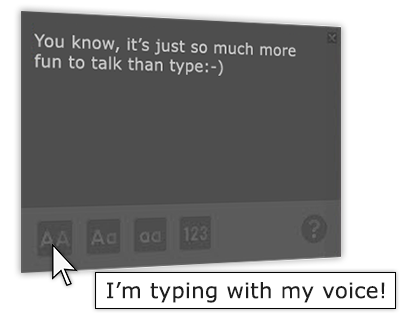
LilySpeech is truly a joy to use. Click or press Ctrl+D and start dictating absolutely anything on your computer in real time.
In this demonstration we see:
- Text dictated in real time
- Customization of display in settings
- Various punctuation
The ease of use is amazing and the time savings will have you jumping for joy!