



Why Type When You Can Talk?
LilySpeech is a FREE* speech to text dictation application for Windows with support for 51 languages! Experience the freedom of typing with your voice today.

Islenska Voice To Text Software
Converting speech to text in Icelandic using voice recognition software means speaking naturally into your microphone and watching your words appear on screen instantly. LilySpeech provides a free, cloud-based solution that captures Icelandic dictation with 99.5% accuracy, powered by proven speech recognition technology. Whether you are writing emails, composing documents, or searching the web, hands-free voice input eliminates typing strain and accelerates productivity. This guide walks you through setting up and using Islenska voice to text software on your Windows computer, from installation to customizing vocabulary for specialized work.
By following these steps, you will have a working dictation system ready within minutes. The process requires no technical expertise and no expensive software licenses. LilySpeech handles the heavy lifting through cloud processing, so your machine stays lightweight and responsive.
Step 1: Download and Install LilySpeech on Your Windows Device
Start by visiting LilySpeech and downloading the Windows application. The software is free and lightweight, meaning it will not consume significant disk space or system resources on your computer. Once the installer file is on your machine, double-click it and follow the on-screen prompts. The installation takes only a few moments because LilySpeech relies on cloud-based processing rather than storing heavy speech recognition engines locally.
After installation completes, launch the application. You will see a simple interface with a microphone button and a text area. This straightforward design is intentional, keeping the focus on your words rather than complex menus. At this stage, your software is ready to recognize speech, but you have not yet configured language settings or custom vocabulary. That comes next.
Step 2: Select Icelandic as Your Dictation Language
LilySpeech supports 51 languages, including Icelandic. Within the application settings, locate the language menu and select Icelandic from the list. This tells the software to expect Icelandic speech patterns and grammar, which dramatically improves accuracy compared to leaving the language set to English or another tongue. Because the software processes your audio through cloud servers configured for your chosen language, switching to Icelandic ensures that specialized Icelandic terms and phonetic patterns are recognized correctly.
Once Icelandic is selected, the change takes effect immediately. You do not need to restart the application or reconfigure anything else. If you work in multiple languages, you can switch between them each time you open LilySpeech, though most users select their primary language once and leave it unchanged.
Step 3: Check Your Microphone and Adjust Audio Settings
Before you start dictating, verify that your microphone is connected and functioning. Most Windows computers have built-in microphones, but external USB microphones or headset microphones often deliver clearer results. Within LilySpeech settings, select your microphone from the available devices. Speak a short test phrase and watch the application detect your voice level. If the microphone is too quiet or too loud, adjust the input volume using Windows sound settings or your hardware controls.
Test accuracy at this stage by dictating a few sentences and reviewing the output. If you notice frequent errors or missed words, the problem usually traces back to microphone quality or background noise rather than the software itself. A quiet room and a decent microphone eliminate most recognition issues. Because LilySpeech uses cloud-based voice to text conversion, your audio is processed remotely, so a stable internet connection is also necessary.
Step 4: Begin Dictating and Edit Text as Needed
Click the microphone button to start recording your voice. Speak clearly and naturally, without pausing awkwardly between words. The application displays text in real time as it recognizes your speech, so you see results immediately. For most users, real-time feedback means greater confidence and faster workflow. When you finish a thought or complete a sentence, click the microphone button again to stop recording.
Review the text that appeared on your screen. Because accuracy reaches 99.5%, most dictation requires little to no editing. Any occasional errors can be corrected by selecting the wrong word and typing the correct version. Most professional users find that voice dictation, even with minor corrections, remains faster than typing the same content by hand.
Step 5: Add Custom Words and Industry-Specific Vocabulary
LilySpeech includes custom word recognition, a powerful feature for professionals with specialized terminology. Medical practitioners, legal professionals, technical writers, and industry experts often use jargon or proper nouns that general speech recognition software may misinterpret. Within the application settings, access the custom vocabulary section and add words, phrases, or names that are specific to your field. This tells the software to prioritize these terms when processing your speech.
For example, a medical professional might add diagnostic terms or patient names; a legal practitioner might add case names or statutory language; a technical writer might add product names or coding terms. Each time you add a custom word, the system learns to recognize that term more accurately in future dictation. Building your vocabulary library takes a few minutes upfront but pays dividends through higher accuracy and reduced editing time over weeks and months of use.
Step 6: Copy, Save, or Send Your Dictated Text
Once your dictation is complete and edited, you have several options. You can copy the text to your clipboard and paste it into email, word processors, web forms, or any other application where text belongs. Alternatively, many users dictate directly into browser-based tools or productivity applications that accept pasted content. LilySpeech acts as a bridge between your voice and any text destination, so the software does not lock you into a specific platform.
Save important dictations by copying them to a document or using your application's save features. Because LilySpeech is cloud-based, your dictation sessions are not stored on the company's servers beyond the moment of conversion. This privacy-focused approach means your data remains your own.
Step 7: Optimize Your Workflow for Hands-Free Productivity
Now that you understand the basics, refine your process to maximize time savings. Many users benefit from using voice commands to trigger dictation while working in other applications. Keep the LilySpeech window visible or use keyboard shortcuts to activate the microphone without reaching for the mouse. If you dictate frequently, dedicate a few sessions to testing different microphone placements and room acoustics. Small environmental changes sometimes yield noticeable accuracy improvements.
Track the time you save by dictating rather than typing. Most users reclaim 15 to 30 percent of their composition time, which compounds significantly over months of regular use. That reclaimed time translates directly into more content produced, fewer sore wrists, and less eye strain. For busy professionals, students managing heavy workloads, and content creators producing daily material, voice to text conversion represents a measurable productivity upgrade that costs nothing to try.
LilySpeech makes Icelandic voice dictation accessible and affordable. If you have questions about using the software or want to explore how voice to text conversion fits your specific workflow, reach out to the team. They welcome conversations about customization, language support, and how dictation can serve your needs.
Frequently Asked Questions
Does LilySpeech support Icelandic language recognition?
Yes. LilySpeech supports 51 languages, including Icelandic. You select your language from the settings menu, and the cloud-based recognition engine processes your speech accordingly. Switching between languages is instant.
What microphone quality do I need for accurate Icelandic voice to text?
Most external USB microphones or headset microphones deliver better results than built-in computer microphones, but built-in options work fine in quiet rooms. Clear speech and minimal background noise matter more than expensive equipment. Test with what you have and upgrade only if accuracy remains an issue.
Can I add Icelandic industry terminology to LilySpeech's custom word list?
Yes. The software includes custom word and vocabulary recognition. You can add specialized terms, proper nouns, and industry jargon specific to your field. Each custom entry improves future recognition accuracy for those terms.
Is there a cost to use LilySpeech for Icelandic voice to text dictation?
LilySpeech is free. The cloud-based application requires no subscription fees or licensing costs. You simply download the software and begin dictating at no charge.

99.5% Accurate!
LilySpeech is powered by Google Chrome’s amazing speech to text service which is 99.5% accurate. If you’ve been sending text messages with your voice on your Android phone, then you already know how well it works.
Watch the video below to see a demonstration of just how accurate LilySpeech is.
Custom Words
You can customize LilySpeech to recognize custom words. This might be business names, web addresses, the correct spelling of peoples names, industry specific terms. Anything you wish.
Even for people in specialized Industries, LilySpeech shines with its ability to recognize unusual vocabulary.
Lightweight
LilySpeech is an extremely lightweight application which will not slow down your computer or hog your computer’s memory.
This is made possible by the fact that the actual speech-to-text conversion occurs in the cloud and does not use your local machines resources.

See it in Action!
LilySpeech Speech Recognition Demo
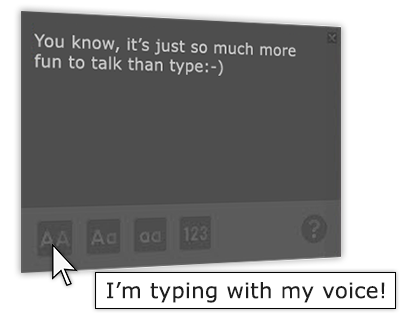
LilySpeech is truly a joy to use. Click or press Ctrl+D and start dictating absolutely anything on your computer in real time.
In this demonstration we see:
- Text dictated in real time
- Customization of display in settings
- Various punctuation
The ease of use is amazing and the time savings will have you jumping for joy!