



Why Type When You Can Talk?
LilySpeech is a FREE* speech to text dictation application for Windows with support for 51 languages! Experience the freedom of typing with your voice today.

Panama Spanish Speech Recognition Software
Panama Spanish speech recognition software lets you convert spoken words directly into text on your Windows computer, all in real time and completely free. If you work in Panama, speak Spanish as your primary language, or need to dictate content in Panamanian Spanish, LilySpeech delivers professional-grade accuracy without the premium software price tag. This guide walks you through everything you need to know to start dictating in Spanish and boost your productivity.
LilySpeech powers speech recognition across 51 languages, including Spanish variants suited to Panama's linguistic landscape. Whether you are a journalist in Panama City, a legal professional in Colon, or a content creator anywhere in the country, this cloud-based dictation tool gives you hands-free accuracy powered by proven speech recognition technology. No local installation headaches. No subscription fees. Just download, launch, and start speaking.
Step 1: Download and Install LilySpeech on Your Windows Computer
Visit the LilySpeech website and download the application directly to your Windows desktop. The software is lightweight and cloud-based, so it will not consume your computer's processing power or hard drive space. Once the download finishes, run the installer and follow the on-screen prompts. Installation takes less than two minutes.
After setup completes, launch LilySpeech from your desktop or Start menu. You will see a simple, clean interface with a microphone icon and a text display area. Because LilySpeech is cloud-based, your spoken words are processed through Google's speech recognition engine in the cloud, then returned to your screen as text. This approach means you get enterprise-grade accuracy without needing expensive local processing hardware.
Step 2: Select Panama Spanish as Your Language and Test Your Microphone
Open LilySpeech and locate the language dropdown menu. Select Spanish and confirm that your region or dialect setting reflects Panama Spanish or standard Latin American Spanish, depending on your preference. Test your microphone by clicking the microphone icon and speaking a short phrase aloud. Watch the text appear in real time on your screen. If text does not appear or appears garbled, check that your microphone is properly connected and not muted in your Windows sound settings.
Microphone quality directly affects accuracy. If you are using a built-in laptop microphone, you may notice occasional misrecognitions, especially in noisy environments. For best results in Panama or any location, invest in a USB headset or external microphone. Speak clearly and at a natural pace. Because LilySpeech achieves 99.5 percent accuracy with Google's recognition engine, most minor stumbles correct themselves as the software learns your voice patterns.
Step 3: Configure Custom Words and Industry-Specific Vocabulary
LilySpeech lets you add custom words and specialized terminology so the software recognizes your industry language correctly every time. If you work in law, medicine, finance, or any field with technical jargon, this feature is invaluable. Access the custom word settings in the application menu, then add terms relevant to your work. For example, medical professionals in Panama might add anatomical terms or drug names in Spanish; legal practitioners might add procedural Spanish terms unique to Panamanian law.
Test each custom word by dictating a sentence that includes it. Confirm that the software transcribes it correctly. You can add or edit custom words at any time. This customization ensures that when you dictate, your specialized vocabulary appears exactly as written, eliminating the need to manually correct terminology after dictation.
Step 4: Begin Dictating Emails, Documents, and Web Content
Open any text field on your Windows computer: an email compose window, a Word document, a web form, or a search bar. Click the LilySpeech microphone icon to activate voice dictation. Speak naturally as though you were typing, and your words will appear instantly in the text field. When you finish, click the microphone icon again to stop recording. Your complete text remains in the application and in the destination field.
LilySpeech works with any Windows application that accepts text input. This universal compatibility means you can dictate directly into Gmail, Microsoft Outlook, Google Docs, your company's CRM, social media posting tools, or any web browser. Because the tool is cloud-based and runs in real time, dictation feels seamless and responsive. Pauses between sentences are recognized naturally, so you can dictate at conversational speed without worrying about punctuation marks.
Step 5: Edit, Copy, and Share Your Dictated Text
Once you finish dictating, review the text on your screen for any errors. Because Panama Spanish speech recognition software operates at 99.5 percent accuracy, most content will be perfect or require only minor tweaks. If you spot a misrecognized word, simply select it and retype it manually. Use standard Windows keyboard shortcuts to format text, adjust capitalization, or insert line breaks. All edits appear instantly.
Copy your dictated text using Ctrl+C and paste it anywhere you need it. Send it via email, upload it to cloud storage, or save it to your computer. Because LilySpeech is a cloud-based tool, your dictation history is not stored on your device, so your privacy is maintained. If you need to revisit what you dictated, simply create the text again or manually save a copy.
Step 6: Optimize Your Workflow with Voice Command Shortcuts
LilySpeech supports voice commands, so you can control basic functions without touching your keyboard. Say commands like "new line," "new paragraph," "period," "question mark," or "comma" to format your text as you dictate. This voice command software for Windows users streamlines your workflow and keeps your hands completely free if you are working on multiple tasks simultaneously.
Practice using voice commands during your first few dictation sessions. Many professionals in Panama and beyond find that combining voice dictation with simple commands dramatically cuts typing time and reduces repetitive strain. Test different command phrases to find the ones that feel most natural to you. Your microphone will learn your speech patterns, so accuracy improves the more you use the tool.
Step 7: Monitor Accuracy and Adjust Settings for Your Environment
Keep track of which types of content produce the best accuracy. If you notice that dictating in a quiet office yields better results than dictating in a coffee shop, adjust your routine accordingly. LilySpeech settings let you manage microphone sensitivity and audio input sources. If you work in multiple locations around Panama or elsewhere, test your setup in each space to understand how ambient noise affects recognition.
When accuracy dips, the problem is usually environmental, not the software. Background noise, interruptions, or speaking too quickly can reduce recognition quality. By contrast, clear speech in a quiet space with a quality microphone consistently produces near-perfect results. If you have dedicated workspace, invest a few minutes in optimizing your microphone placement and minimizing distractions. The payoff in productivity is substantial.
LilySpeech removes the friction from voice-to-text dictation. Whether you are writing reports, composing correspondence, researching online, or creating any text-based content, dictation in Panama Spanish works reliably and costs nothing. Start dictating today and experience how much faster your workday becomes when you can compose with your voice instead of your fingers.
Ready to transform the way you work? Visit LilySpeech and download the free application now. If you have questions about how speech recognition works with your specific needs or workflow, reach out to the LilySpeech team. They are here to help you get the most from hands-free, cloud-based dictation.
Frequently Asked Questions
What languages does LilySpeech support, and can I dictate in Panama Spanish?
LilySpeech supports 51 languages and language variants, including Spanish suited to Panama and throughout Latin America. You can select Spanish as your language in the application settings and begin dictating immediately. The speech recognition software recognizes Panamanian Spanish speech patterns and vocabulary accurately.
Is LilySpeech truly free, or do I have to pay a subscription?
LilySpeech is completely free. There are no subscriptions, no hidden fees, and no premium tiers. Download the application, install it on your Windows computer, and start dictating. All cloud-based processing is included at no cost.
How accurate is Panama Spanish speech recognition in LilySpeech?
LilySpeech delivers 99.5 percent accuracy powered by Google's speech recognition engine. When you use a quality microphone, speak clearly, and work in a quiet environment, accuracy is consistently high. Custom word settings further improve recognition for specialized terminology and industry jargon.
Can I use LilySpeech to dictate in Panama City and other parts of the country?
Yes. LilySpeech is cloud-based, so it works anywhere in Panama and globally as long as you have a Windows computer and internet connection. Whether you are in Panama City, Colon, San Blas, or any other region, you can dictate in Spanish without regional restrictions.
What microphone do I need to use LilySpeech for best results?
LilySpeech works with any microphone, including built-in laptop mics. For best accuracy, use a USB headset or external microphone. Quality microphones pick up speech more clearly, reducing background noise and improving recognition, especially in busy environments.
Can LilySpeech learn industry-specific words and technical terminology?
Yes. LilySpeech includes custom word recognition so you can add specialized vocabulary, medical terms, legal jargon, or any industry-specific language. Once added, these custom words are recognized accurately every time you dictate.
Does LilySpeech store my dictated text in the cloud, or is it private?
LilySpeech processes your speech in the cloud to convert it to text, but your dictation history is not stored on LilySpeech servers. Your text appears on your screen and in the destination application. If you need to save it, you manually copy and paste it or save the document yourself, keeping control of your data.

99.5% Accurate!
LilySpeech is powered by Google Chrome’s amazing speech to text service which is 99.5% accurate. If you’ve been sending text messages with your voice on your Android phone, then you already know how well it works.
Watch the video below to see a demonstration of just how accurate LilySpeech is.

Custom Words
You can customize LilySpeech to recognize custom words. This might be business names, web addresses, the correct spelling of peoples names, industry specific terms. Anything you wish.
Even for people in specialized Industries, LilySpeech shines with its ability to recognize unusual vocabulary.

Lightweight
LilySpeech is an extremely lightweight application which will not slow down your computer or hog your computer’s memory.
This is made possible by the fact that the actual speech-to-text conversion occurs in the cloud and does not use your local machines resources.

See it in Action!
LilySpeech Speech Recognition Demo
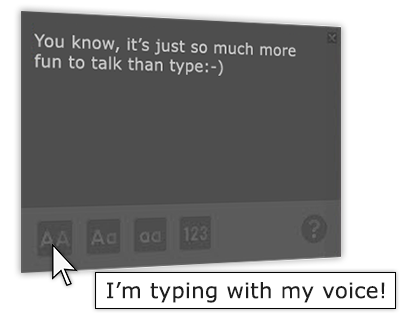
LilySpeech is truly a joy to use. Click or press Ctrl+D and start dictating absolutely anything on your computer in real time.
In this demonstration we see:
- Text dictated in real time
- Customization of display in settings
- Various punctuation
The ease of use is amazing and the time savings will have you jumping for joy!