



Why Type When You Can Talk?
LilySpeech is a FREE* speech to text dictation application for Windows with support for 51 languages! Experience the freedom of typing with your voice today.

Type With My Voice In Outlook
Typing with your voice in Outlook means composing emails, meeting notes, and calendar entries by speaking instead of using your keyboard. LilySpeech makes this possible on Windows by converting your spoken words into text in real time, powered by Google's Chrome speech recognition engine with 99.5% accuracy. No subscription fees, no complex setup, and no need for expensive premium software. If you spend your day drafting emails, managing correspondence, or capturing quick thoughts, voice dictation eliminates typing fatigue and reclaims hours each week.
This guide walks you through the technical process of integrating LilySpeech with Outlook so you can compose, edit, and send emails entirely by voice. You will learn how to activate voice input, format text with spoken commands, handle special characters, and troubleshoot common recognition issues. By the end, you will have a fully functional hands-free email workflow.
1. Download and Install LilySpeech on Your Windows Machine
Start by obtaining LilySpeech directly from the official website. The application is lightweight and cloud-based, so it requires minimal disk space and no intensive local processing. Download the installer for Windows, then run the executable file and follow the on-screen setup wizard. The installation process takes under two minutes and places the application in your system tray for quick access.
After installation completes, restart your Windows system to ensure all components integrate properly with your Outlook environment. LilySpeech will appear as an active icon in your system tray. No additional drivers, plugins, or configuration files are needed. The application is ready to use immediately after restart.
2. Grant Microphone Permissions and Test Audio Input
Windows will prompt you to allow LilySpeech access to your microphone the first time you launch the application. Click "Allow" to grant this permission. This step is essential because LilySpeech must receive audio input from your device to convert speech to text. You can verify this permission later in Windows Settings under Privacy and Security if needed.
Test your microphone by speaking into it while the LilySpeech window is active. You should see a visual indicator showing that audio is being detected. Speak at a normal conversational volume, approximately 12 inches from your microphone. If the audio meter does not respond, check that your microphone is not muted in Windows volume settings and that it is selected as the active input device.
3. Open Outlook and Position the LilySpeech Interface
Launch Microsoft Outlook and navigate to the email compose window by clicking "New Email" or pressing Ctrl+N. Keep both Outlook and LilySpeech visible on your screen. If you use a single monitor, position LilySpeech as a narrow floating window beside your Outlook compose area. For dual-monitor setups, place LilySpeech on your secondary monitor for optimal workflow efficiency.
Click inside the message body field in Outlook to place your text cursor there. This tells the system where your dictated text will appear. The cursor should blink visibly in the compose window. Do not close Outlook or minimize its window while dictating, as this can interrupt the text input stream.
4. Begin Dictation and Use voice commands for Formatting
Click the microphone button in LilySpeech to start recording. Speak your email content clearly and naturally. The application processes your speech through cloud-based recognition and delivers text to Outlook in real time. You will see your words appear in the message body as you speak. Pause briefly between sentences to allow the recognition engine to process breaks naturally.
LilySpeech supports voice commands for formatting and punctuation. Say "period" or "full stop" to end a sentence. Say "comma" to insert a comma, "question mark" for a question, and "new line" or "new paragraph" to create line breaks. For specialized terminology, configure custom word recognition in LilySpeech settings before you begin dictating. For example, medical professionals can add condition names, pharmaceutical terms, or anatomical structures so the software recognizes industry-specific vocabulary with accuracy. This feature is particularly valuable if you work in legal, medical, technical, or scientific fields where precision matters.
5. Review, Edit, and Send Your Voice-Dictated Email
When you finish dictating, click the microphone button again to stop recording. Review the transcribed text in Outlook for any errors or unclear passages. Because LilySpeech delivers 99.5% accuracy, most emails require minimal editing. Use your keyboard to make corrections, adjust punctuation, or add formatting that voice commands may have missed. This hybrid approach combines the speed of dictation with the precision of manual review.
Add recipients, subject line, and any attachments as you normally would. If you prefer to dictate the subject line as well, do so before you compose the message body, or use the same process by clicking in the subject field and speaking your subject text. Once satisfied with your email, click "Send" to deliver your message. You have successfully composed and sent an email using voice dictation, reducing keyboard strain and completing the task faster than traditional typing would allow.
LilySpeech works with Outlook on Windows across all modern versions of the application. Because dictation happens through your browser's speech recognition engine running in the cloud, there are no compatibility issues with different Outlook builds or update cycles. Your audio is processed securely, and text is delivered directly to your application without intermediate storage.
If you find that voice dictation transforms how you work with email, consider exploring the same technology for other text-based tasks. Many professionals discover that the same free speech-to-text capability works equally well for composing documents, crafting web search queries, or capturing notes during meetings. LilySpeech supports 51 languages, so multilingual users can dictate in their native language or switch between languages mid-session without reconfiguring the software.
Ready to eliminate typing fatigue and work hands-free? Visit LilySpeech to download the application and experience voice dictation for yourself. If you have questions about setup, compatibility with your Outlook version, or how to optimize the software for your specific workflow, reach out to the LilySpeech team directly. They are here to help you get the most from your free voice-to-text experience.
Frequently Asked Questions
Does LilySpeech work with all versions of Microsoft Outlook on Windows?
Yes, LilySpeech is compatible with all modern versions of Outlook on Windows because it uses cloud-based speech recognition and delivers text directly to your active text field. There are no version-specific requirements or plugin dependencies. Simply install LilySpeech, grant microphone permissions, and begin dictating into any Outlook compose window.
What accuracy should I expect when I type with my voice in Outlook?
LilySpeech delivers 99.5% accuracy powered by Google's Chrome speech recognition engine. This means most emails require minimal editing after dictation. Accuracy improves when you speak clearly at a normal conversational pace and configure custom word recognition for industry-specific terminology relevant to your work.
Can I use voice commands to format text while dictating emails?
Yes. You can say voice commands like 'period,' 'comma,' 'question mark,' and 'new paragraph' to control punctuation and formatting. For more advanced formatting, dictate your content first, then use keyboard shortcuts and your mouse to apply bold, italic, links, and other Outlook formatting after the text is in place.
Is my audio and email content secure when using LilySpeech?
LilySpeech processes audio through Google's cloud-based speech recognition engine and delivers transcribed text directly to your Outlook application. Audio is not stored or retained after transcription. The text goes directly into your email compose window and remains within your Outlook account, subject to your existing email security settings.
How do I add technical terms and specialized vocabulary to LilySpeech for accurate dictation?
LilySpeech includes custom word recognition settings where you can add industry-specific terminology, company names, medical terms, legal phrases, or other specialized vocabulary. Configure these words before you begin dictating, and the software will recognize them with high accuracy during transcription. This feature is essential for professionals in medical, legal, technical, and scientific fields.
Does LilySpeech support multiple languages, and can I switch languages while dictating?
LilySpeech supports 51 languages. You can switch between languages in the application settings before you start dictating, or configure language switching preferences to allow mid-session changes. This makes it ideal for multilingual users who compose emails in different languages throughout their workday.
What should I do if LilySpeech is not recognizing my speech accurately?
First, verify that your microphone is working and selected as the active input device in Windows. Speak clearly at a normal conversational volume about 12 inches from your microphone. Check that custom word recognition is configured for any specialized terms. If recognition remains poor, test with a different microphone to rule out hardware issues, and ensure your internet connection is stable since LilySpeech relies on cloud processing.

99.5% Accurate!
LilySpeech is powered by Google Chrome’s amazing speech to text service which is 99.5% accurate. If you’ve been sending text messages with your voice on your Android phone, then you already know how well it works.
Watch the video below to see a demonstration of just how accurate LilySpeech is.

Custom Words
You can customize LilySpeech to recognize custom words. This might be business names, web addresses, the correct spelling of peoples names, industry specific terms. Anything you wish.
Even for people in specialized Industries, LilySpeech shines with its ability to recognize unusual vocabulary.

Lightweight
LilySpeech is an extremely lightweight application which will not slow down your computer or hog your computer’s memory.
This is made possible by the fact that the actual speech-to-text conversion occurs in the cloud and does not use your local machines resources.

See it in Action!
LilySpeech Speech Recognition Demo
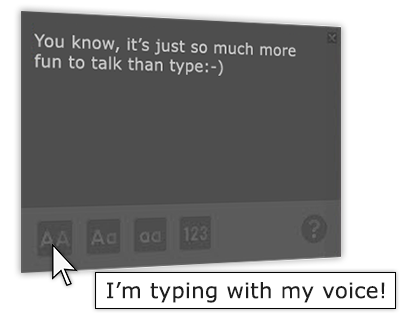
LilySpeech is truly a joy to use. Click or press Ctrl+D and start dictating absolutely anything on your computer in real time.
In this demonstration we see:
- Text dictated in real time
- Customization of display in settings
- Various punctuation
The ease of use is amazing and the time savings will have you jumping for joy!