



Why Type When You Can Talk?
LilySpeech is a FREE* speech to text dictation application for Windows with support for 51 languages! Experience the freedom of typing with your voice today.

Type With My Voice In Pinterest
Typing with your voice in Pinterest means using speech-to-text technology to compose pins, descriptions, and comments hands-free, converting your spoken words into text in real time. LilySpeech makes this possible with a free, cloud-based dictation application for Windows that integrates seamlessly with any browser-based interface, including Pinterest. Whether you're a content creator managing multiple boards, a busy entrepreneur pinning product links, or someone looking to reduce typing fatigue, voice dictation transforms how quickly you can interact on the platform.
This guide walks you through enabling voice input for Pinterest using LilySpeech's proven speech recognition engine, which delivers 99.5% accuracy and supports 51 languages. You'll learn exactly how to set up the application, activate voice dictation, and start composing pins without touching your keyboard.
Step 1: Download and Install LilySpeech on Your Windows Device
Start by visiting the LilySpeech website and downloading the application to your Windows computer. The installation process is straightforward and requires no technical knowledge. LilySpeech is lightweight, meaning it won't slow down your system or demand extensive local processing resources. Once installed, the application runs in the background and integrates with your Windows environment automatically.
After installation completes, launch the application. You'll see a simple interface with a microphone icon and a text input area. This is your command center for voice dictation. No additional configuration is needed at this stage because LilySpeech uses cloud-based conversion technology powered by Google's Chrome speech recognition engine, so everything works out of the box.
Step 2: Open Pinterest and Position the LilySpeech Interface
Open Pinterest in your web browser and navigate to the section where you want to create content. This might be composing a new pin description, writing a board title, adding comments, or drafting a message. The key is to have both Pinterest and LilySpeech visible on your screen at the same time, or to have quick access to switch between them. Arrange your windows side by side if your monitor space allows, or use Alt+Tab to toggle between applications.
When you're ready to type with your voice in Pinterest, click the microphone button in LilySpeech and begin speaking. The application captures your words in real time and displays them in its text field. Because LilySpeech supports custom word and vocabulary recognition, you can train it to recognize specialized terminology relevant to your Pinterest niche, whether that's product names, brand terminology, or industry-specific language.
LilySpeech's 99.5% accuracy rate means fewer corrections and more time actually creating content rather than editing voice-to-text errors.
Step 3: Copy Your Dictated Text and Paste It Into Pinterest
Once you've finished speaking and your text appears in LilySpeech, select all the text using Ctrl+A and copy it with Ctrl+C. Switch to your Pinterest window and click into the text field where you want the content to appear. This could be a pin description box, a comment field, a board description, or any other text input area on the platform. Paste your dictated content using Ctrl+V.
Review the text for accuracy. LilySpeech's cloud-based technology and integration with proven speech recognition deliver strong accuracy, but natural speech sometimes includes false starts or unclear words. Make any small edits directly in Pinterest's text field, then publish your content. The entire process from speaking to publishing typically takes just a few minutes, dramatically faster than typing the same content manually.
Key advantages of this workflow include the following:
- No subscription fees or premium licensing required
- Instant, real-time conversion of voice to text
- Works with any text field on any website, including Pinterest
- Reduces typing fatigue and repetitive strain
- Supports 51 languages for multilingual content creators
- Lightweight application that doesn't consume system resources
For users who compose multiple pins daily, this voice dictation approach cuts composition time significantly. Writers, journalists, and content creators report completing pin batches in a fraction of the time required by traditional typing. The hands-free operation also means you can dictate while doing other tasks, like reviewing competitor boards or organizing your content calendar.
LilySpeech empowers you to create Pinterest content faster, with less physical strain, and without paying for expensive speech recognition software. Ready to streamline your Pinterest workflow with voice dictation? Get in touch with the LilySpeech team to learn how other creators are already using this free tool to boost their productivity and reach.
Frequently Asked Questions
Is LilySpeech really free to use for Pinterest dictation?
Yes, LilySpeech is completely free. There are no subscription fees, hidden charges, or premium tiers required to access full speech-to-text functionality. You simply download the application for Windows and start dictating immediately.
What accuracy rate can I expect when typing with my voice in Pinterest using LilySpeech?
LilySpeech delivers 99.5% accuracy powered by Google's Chrome speech recognition engine. This high accuracy rate means minimal corrections needed after dictation, saving you time and frustration when creating pins and descriptions.
Does LilySpeech work directly inside Pinterest, or do I need to dictate elsewhere first?
LilySpeech operates as a separate application on your Windows computer. You dictate text in LilySpeech, then copy and paste the result into Pinterest's text fields. This takes just seconds and works with any browser-based text input, including pin descriptions, comments, board titles, and messages.
Can I use LilySpeech to type with my voice if I work in a specialized industry with technical terminology?
Yes. LilySpeech includes custom word and vocabulary recognition, allowing you to train the application to accurately recognize industry-specific terminology, brand names, product terms, and specialized language relevant to your niche. This ensures accuracy even with uncommon words.
How many languages does LilySpeech support for Pinterest content?
LilySpeech supports 51 languages, making it ideal for content creators who work in multiple languages or manage Pinterest boards for international audiences. You can switch languages in the application settings before dictating.
Will LilySpeech slow down my Windows computer?
No. LilySpeech is a lightweight application that uses cloud-based conversion technology, eliminating the need for heavy local processing resources. The application runs efficiently in the background without consuming significant system memory or processing power.
What do I need to get started with typing my voice in Pinterest using LilySpeech?
You need a Windows computer with internet access and a working microphone or headset. Download LilySpeech from their website, install it, and you're ready to start dictating. No additional software, accounts, or configuration is required.

99.5% Accurate!
LilySpeech is powered by Google Chrome’s amazing speech to text service which is 99.5% accurate. If you’ve been sending text messages with your voice on your Android phone, then you already know how well it works.
Watch the video below to see a demonstration of just how accurate LilySpeech is.

Custom Words
You can customize LilySpeech to recognize custom words. This might be business names, web addresses, the correct spelling of peoples names, industry specific terms. Anything you wish.
Even for people in specialized Industries, LilySpeech shines with its ability to recognize unusual vocabulary.

Lightweight
LilySpeech is an extremely lightweight application which will not slow down your computer or hog your computer’s memory.
This is made possible by the fact that the actual speech-to-text conversion occurs in the cloud and does not use your local machines resources.

See it in Action!
LilySpeech Speech Recognition Demo
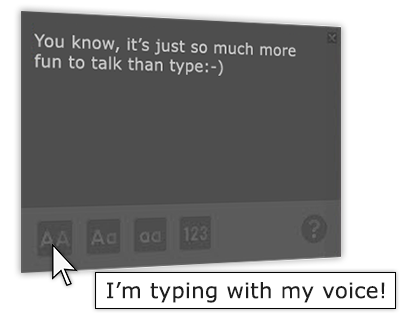
LilySpeech is truly a joy to use. Click or press Ctrl+D and start dictating absolutely anything on your computer in real time.
In this demonstration we see:
- Text dictated in real time
- Customization of display in settings
- Various punctuation
The ease of use is amazing and the time savings will have you jumping for joy!