






Why Type When You Can Talk?
LilySpeech is a FREE* speech to text dictation application for Windows with support for 51 languages! Experience the freedom of typing with your voice today.

Uruguay Spanish Dictation Software
Uruguay Spanish dictation software lets you speak and watch your words appear on screen in real time, without typing a single character. If you work in Uruguay or speak Spanish as your primary language, LilySpeech gives you a free, cloud-based way to dictate emails, documents, web searches, and any text-based content directly from your Windows desktop using your voice.
This guide walks you through everything you need to know to start using this technology today. By the end, you'll have LilySpeech running on your computer and be ready to dictate in Spanish with 99.5% accuracy. Whether you're a writer, journalist, legal professional, medical practitioner, or simply someone who types all day, this tool can cut your typing time dramatically and reduce the fatigue that comes with keyboard work.
Step 1: Download and Install LilySpeech on Your Windows Computer
Start by visiting the LilySpeech website and downloading the application. The software is designed for Windows and is lightweight, so it won't slow down your computer or demand lots of storage space. Once the download completes, run the installer and follow the on-screen prompts. Installation takes just a few minutes.
LilySpeech works through cloud processing, which means it doesn't use your computer's resources to convert speech to text. This keeps your machine fast and responsive, even if you're running other programs at the same time. After installation finishes, you're ready to move forward.
Step 2: Launch the Application and Select Spanish as Your Language
Open LilySpeech from your Windows desktop or Start menu. The interface is simple and clean, so you won't feel lost. Look for the language selection menu. LilySpeech supports 51 languages, including Spanish. Find Spanish from the dropdown list and select it. If you want to be even more specific to your region, you can often choose Spanish variants, though the standard Spanish setting works seamlessly across Uruguay and everywhere Spanish is spoken.
Once Spanish is selected, the application is configured and ready to listen. You'll see a microphone icon or recording button on your screen. This is your signal that the software is waiting for your voice.
Step 3: Position Your Microphone and Test Your Audio
Plug in your microphone or use your computer's built-in mic if it has one. Position it about six inches from your mouth at a slight angle, not directly in front of your lips. This positioning reduces plosives and gives the software cleaner audio to work with. If you're in an office or shared space in Uruguay or anywhere else, a headset microphone works best because it isolates your voice from background noise.
Before you start dictating important work, say a few test sentences. Watch how accurately LilySpeech converts your Spanish speech to text. If the accuracy looks good, you're ready. If you notice errors, try moving the microphone slightly or checking that your Windows sound settings are correct. Most issues resolve quickly with these small adjustments.
Step 4: Set Up Custom Vocabulary for Your Specialized Terms
One powerful feature of LilySpeech is custom word recognition. If you work in a field with industry-specific vocabulary-medical terminology, legal jargon, technical Spanish terms, or proper names unique to your workplace-you can teach the software these words. Access the custom vocabulary settings in the LilySpeech menu and add the words or phrases you use most often.
This step is especially valuable if you're a medical professional, lawyer, or technical writer working with Spanish-language content. Because LilySpeech lets you define these custom terms, your dictation becomes even more accurate for your specific work. You build a dictionary that understands your language the way you use it.
Step 5: Start Dictating and Refine Your Workflow
Open any text editor, email client, word processor, or web search box on your Windows computer. Click the microphone button in LilySpeech and start speaking. Speak naturally-pause between sentences as you normally would. Watch your words appear on the screen in real time. The 99.5% accuracy powered by Google's speech recognition engine means you'll spend far less time correcting mistakes than you would have spent typing.
As you use this software over days and weeks, you'll develop a rhythm. You might dictate a full email in the time it used to take to type half of it. Writers and journalists report that dictation actually helps them think more clearly because they're not distracted by the mechanics of typing. Experiment with different microphone positions and speaking speeds to find what works best for your voice and your workflow. The more you use it, the more natural it becomes.
Frequently Asked Questions
Is LilySpeech's Uruguay Spanish dictation software truly free to use?
Yes, LilySpeech is completely free. There are no hidden fees, premium tiers, or subscription costs. You download it, install it, and start dictating right away. The software uses cloud-based conversion technology, so you're not paying for local processing power, and the service remains free for all users.
How accurate is the speech-to-text conversion for Spanish speakers in Uruguay?
LilySpeech delivers 99.5% accuracy powered by Google's speech recognition engine. This high accuracy applies across all 51 supported languages, including Spanish. The accuracy improves further when you set up custom vocabulary for specialized terms unique to your industry or field.
Can I use this dictation software on my laptop if I work remotely in Uruguay?
Yes, absolutely. LilySpeech works on any Windows computer, whether it's a desktop, laptop, or other device. Since it's cloud-based, you need an internet connection, but no special hardware beyond a basic microphone. This makes it ideal for remote workers throughout Uruguay and anywhere in the world.
What types of documents can I dictate using this Spanish dictation software?
You can dictate emails, documents, web searches, and any text-based content directly into your Windows applications. Whether you're writing reports, composing emails, filling out forms, or searching the web, LilySpeech works with any program that accepts typed text. Voice commands make hands-free operation possible for virtually any typing task.
Does LilySpeech offer custom vocabulary settings for professional Spanish terminology?
Yes. LilySpeech includes custom word and vocabulary recognition for specialized terminology and industry-specific language. Medical professionals, lawyers, engineers, and other specialists can teach the software their unique vocabulary, making dictation even more accurate for professional work in Spanish.

99.5% Accurate!
LilySpeech is powered by Google Chrome’s amazing speech to text service which is 99.5% accurate. If you’ve been sending text messages with your voice on your Android phone, then you already know how well it works.
Watch the video below to see a demonstration of just how accurate LilySpeech is.

Custom Words
You can customize LilySpeech to recognize custom words. This might be business names, web addresses, the correct spelling of peoples names, industry specific terms. Anything you wish.
Even for people in specialized Industries, LilySpeech shines with its ability to recognize unusual vocabulary.

Lightweight
LilySpeech is an extremely lightweight application which will not slow down your computer or hog your computer’s memory.
This is made possible by the fact that the actual speech-to-text conversion occurs in the cloud and does not use your local machines resources.

See it in Action!
LilySpeech Speech Recognition Demo
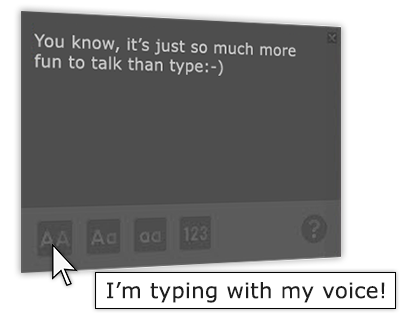
LilySpeech is truly a joy to use. Click or press Ctrl+D and start dictating absolutely anything on your computer in real time.
In this demonstration we see:
- Text dictated in real time
- Customization of display in settings
- Various punctuation
The ease of use is amazing and the time savings will have you jumping for joy!