



Why Type When You Can Talk?
LilySpeech is a FREE* speech to text dictation application for Windows with support for 51 languages! Experience the freedom of typing with your voice today.

Speak To Write Software
Speak to write software lets you convert your spoken words into written text in real time, turning your voice into accurate documents without typing a single character. If you've been frustrated by slow typing, hand fatigue, or the cost of premium dictation tools, LilySpeech offers a free, cloud-based solution that works right from your Windows desktop.
This guide walks you through getting started with LilySpeech, from downloading the application to dictating your first document. By the end, you'll understand how to harness voice recognition to boost your productivity and reduce the time you spend at the keyboard.
Step 1: Download and Install LilySpeech on Your Windows Computer
Start by visiting the LilySpeech website and downloading the application to your Windows device. The installation is straightforward and takes just a few moments. Because LilySpeech is cloud-based, you don't need to worry about using up your computer's storage or processing power. Once you've installed the software, launch it and you're ready to begin dictating.
The lightweight nature of this application means it runs smoothly in the background without slowing down your system. You'll see the LilySpeech interface appear on your screen, ready to capture your voice and transform it into text.
Step 2: Choose Your Language and Set Up Your Microphone
LilySpeech supports 51 languages, so select the language you want to dictate in from the menu. If you work in multiple languages or need to switch between them regularly, you can change this setting at any time. Take a moment to position your microphone close to your mouth but not touching it, and test the audio levels to ensure LilySpeech can hear you clearly.
Most modern Windows computers have built-in microphones, but an external USB microphone or headset will give you better accuracy, especially if you're working in a noisy environment. Because accurate voice recognition depends on clear audio input, investing in a decent microphone is worth the effort if you plan to dictate frequently.
Step 3: Start Dictating and Watch Your Words Appear in Real Time
Open any text field on your computer where you want to place your words. This could be an email, a document, a web search box, or even a social media post. Click the microphone button in LilySpeech or use the voice command to begin recording. Start speaking naturally and at a comfortable pace. Watch as your words appear on the screen with 99.5% accuracy powered by Google's speech recognition engine.
Speak in complete thoughts rather than hesitating between words. If you need to pause, simply stop talking and the software will pause recording. When you're ready to continue, click the microphone button again or use a voice command to resume. This real-time conversion means you see your text appear instantly, making it easy to catch any misheard words and correct them before moving forward.
Step 4: Use Custom Words and Commands for Your Industry or Specialty
One of the most powerful features of LilySpeech is custom word recognition. If you work in a specialized field like medicine, law, technology, or any industry with unique terminology, you can train the software to recognize your specialized vocabulary. This means words that might normally be misunderstood will be captured correctly every time you use them.
To set up custom words, access the vocabulary settings in LilySpeech and add terms specific to your work. The more you use the software, the better it learns your speech patterns, accent, and industry language. For professionals who dictate reports, case files, technical documentation, or other specialized content, this feature transforms speak to write software from a general tool into a precision instrument tailored to your needs. Writers, journalists, medical professionals, and legal practitioners all benefit tremendously from this customization.
LilySpeech makes hands-free productivity accessible to everyone. Whether you're a busy executive who needs to clear your inbox faster, a student taking lecture notes, someone managing a mobility limitation, or a content creator looking to produce more work in less time, this software removes the barrier between your ideas and your documents. Because the application is free and runs in the cloud, you get professional-grade speech recognition without the premium price tag.
Ready to experience the freedom of voice dictation? Contact LilySpeech today to get started with your free account. Our team is happy to answer questions about how this software can fit into your workflow and help you work smarter, not harder.
Frequently Asked Questions
How accurate is LilySpeech speak to write software?
LilySpeech delivers 99.5% accuracy powered by Google's Chrome speech recognition engine. This high accuracy level is consistent across all 51 supported languages and improves further when you add custom words for your industry or specialized terminology.
Can I use speech recognition software if I work with technical or medical terms?
Yes. LilySpeech includes custom word recognition that lets you train the software to understand specialized vocabulary in your field. This makes it ideal for medical professionals, legal practitioners, engineers, and other specialists who need accurate dictation of technical terminology.
Is LilySpeech free to use?
LilySpeech is completely free, cloud-based software for Windows. You don't pay subscription fees or licensing costs. Because it runs on cloud-based technology powered by Google's speech engine, you don't need expensive local processing resources either.
What languages does LilySpeech support?
LilySpeech supports 51 languages, making it ideal for multilingual users, international teams, and anyone who needs to dictate in languages other than English. You can switch between languages easily through the application settings.

99.5% Accurate!
LilySpeech is powered by Google Chrome’s amazing speech to text service which is 99.5% accurate. If you’ve been sending text messages with your voice on your Android phone, then you already know how well it works.
Watch the video below to see a demonstration of just how accurate LilySpeech is.

Custom Words
You can customize LilySpeech to recognize custom words. This might be business names, web addresses, the correct spelling of peoples names, industry specific terms. Anything you wish.
Even for people in specialized Industries, LilySpeech shines with its ability to recognize unusual vocabulary.

Lightweight
LilySpeech is an extremely lightweight application which will not slow down your computer or hog your computer’s memory.
This is made possible by the fact that the actual speech-to-text conversion occurs in the cloud and does not use your local machines resources.

See it in Action!
LilySpeech Speech Recognition Demo
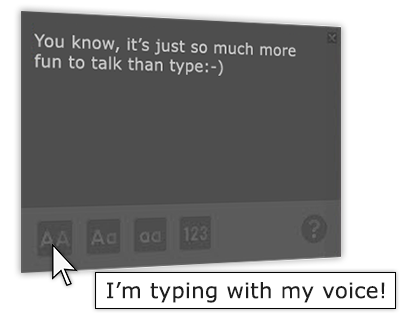
LilySpeech is truly a joy to use. Click or press Ctrl+D and start dictating absolutely anything on your computer in real time.
In this demonstration we see:
- Text dictated in real time
- Customization of display in settings
- Various punctuation
The ease of use is amazing and the time savings will have you jumping for joy!