
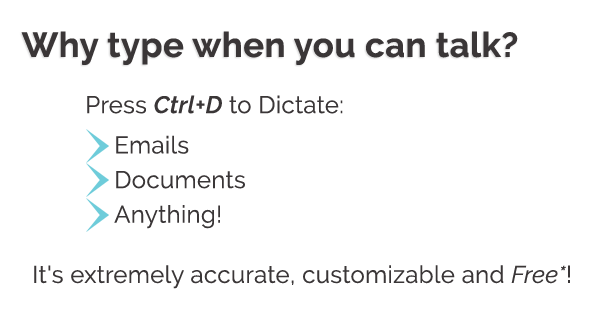



Why Type When You Can Talk?
LilySpeech is a FREE* speech to text dictation application for Windows with support for 51 languages! Experience the freedom of typing with your voice today.

Best Speech To Text
Converting spoken words into written text used to mean buying expensive software or struggling through clunky interfaces. LilySpeech offers the best speech to text solution for Windows users who want to dictate emails, documents, web searches, and any other text without touching a keyboard. This guide walks you through getting started, optimizing your setup, and making voice dictation a seamless part of your daily work.
Whether you are a writer battling typing fatigue, a medical professional documenting patient notes, a legal practitioner drafting contracts, or simply someone who works faster when speaking, the right speech recognition software can transform how you create. By the end of this guide, you will know exactly how to set up and use LilySpeech to capture your thoughts in real time with 99.5% accuracy across 51 languages.
Step 1: Download and Install LilySpeech on Your Windows Device
Start by visiting the LilySpeech website and downloading the application to your Windows computer. The software is cloud-based and lightweight, so it will not bog down your system with heavy local processing demands. Installation takes just a few minutes and requires no special technical knowledge.
Once installed, launch the application and log in with your account credentials. LilySpeech leverages Google's Chrome speech recognition engine, which means you get enterprise-grade accuracy without paying enterprise prices. The setup is intentionally simple so you can start dictating within moments of opening the app.
Step 2: Choose Your Language and Customize Recognition Settings
LilySpeech supports 51 languages, so select the language you will be using most frequently. If you work in multiple languages, you can switch between them on the fly without leaving your document. This flexibility is especially valuable for multilingual professionals and content creators who serve global audiences.
Now comes the feature that sets LilySpeech apart from generic speech recognition: custom word recognition. If you work in a specialized field like medicine, law, technology, or any other industry with unique terminology, you can train the software to recognize your industry-specific vocabulary and specialized terms. Add custom words one at a time or upload a list, and LilySpeech will learn to recognize your profession's language. This eliminates the frustration of watching your software transcribe "subarachnoid hemorrhage" as "sub-arachnoid hedge" or "API endpoint" as "happy endpoint."
Step 3: Position Your Microphone and Test Your Audio
Use a quality microphone for the clearest results. This does not mean buying expensive equipment; a standard USB headset or your laptop's built-in microphone works well. Position the microphone about 6 inches from your mouth and slightly to one side to avoid picking up plosive sounds.
Before you start dictating actual work, run a quick test. Speak a few sentences naturally into LilySpeech and review the transcription. If accuracy is less than expected, check that your microphone is not too close, your room is reasonably quiet, and you are speaking clearly. Most users find that their accuracy improves noticeably after the first few days as they settle into a natural rhythm with the software.
Step 4: Dictate Your First Document or Email
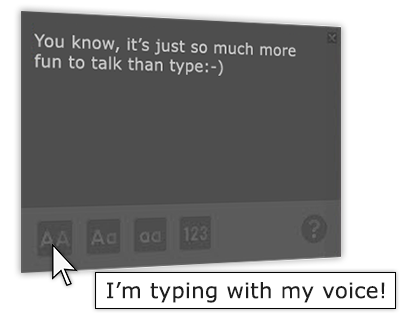
Open the application and start typing with your voice. You can dictate directly into LilySpeech, or use the dictation feature within your email client, word processor, or web browser. The real-time conversion means you see your words appear on screen as you speak, giving you immediate feedback and the chance to correct mistakes on the fly.
Use these voice commands to control your dictation without reaching for the keyboard:
- Say "period," "comma," "question mark," or "exclamation point" to add punctuation
- Say "new line" or "new paragraph" to format your text
- Say "undo" to delete your last phrase
- Say "backspace" to remove single words
These commands keep your hands free and your focus on what you are saying, not on correcting the software.
Step 5: Edit and Refine Your Transcription
Even at 99.5% accuracy, occasional errors slip through, especially with uncommon words, names, or heavy accents. After you finish dictating, review your text and make quick corrections. Because you used voice commands to control formatting as you spoke, most of your editing will be minor word-level adjustments rather than wholesale restructuring.
If you notice the same error appearing repeatedly, that is a signal to add a custom word or phrase to your recognition profile. This feedback loop means LilySpeech gets better at understanding your voice and vocabulary over time.
Step 6: Use Dictation Across Multiple Applications
LilySpeech integrates with your Windows desktop, so you can dictate into email, messaging apps, search bars, document creation tools, and any other text field. You are not limited to a single application or workflow. Start a voice note in LilySpeech, switch to composing an email, then move to writing a web search query, all without changing tools or restarting the software.
This freedom is what makes voice dictation genuinely productive. You are not fighting against software that only works in one place; you are using a tool that fits into your existing workflow and makes it faster.
LilySpeech removes the barriers that have traditionally kept speech recognition software out of reach for most people. No expensive licenses, no complex setup, no need for local processing power, and support for 51 languages means that whether you are a busy professional in California, a student working toward a deadline, or a content creator producing work in multiple languages, the best speech to text experience is available to you right now. When you are ready to stop typing and start dictating, reach out to the LilySpeech team to get started with your free account.
Frequently Asked Questions
How accurate is LilySpeech's speech to text conversion?
LilySpeech delivers 99.5% accuracy powered by Google's Chrome speech recognition engine. Accuracy is highest when you use a quality microphone, speak clearly, and train the software on your industry-specific vocabulary through custom word recognition. Most users experience excellent results within their first few days of use.
Can I use LilySpeech to dictate in languages other than English?
Yes. LilySpeech supports 51 languages, so you can dictate in English, Spanish, French, Mandarin, German, Japanese, and dozens of others. You can switch between languages on the fly without restarting the application, making it ideal for multilingual professionals and global teams.
Is LilySpeech free to download and use on Windows?
LilySpeech is a free, cloud-based application for Windows users worldwide. There are no licensing fees, subscription charges, or hidden costs. The software uses cloud-based conversion technology, so you do not need powerful local processing resources on your computer.

99.5% Accurate!
LilySpeech is powered by Google Chrome’s amazing speech to text service which is 99.5% accurate. If you’ve been sending text messages with your voice on your Android phone, then you already know how well it works.
Watch the video below to see a demonstration of just how accurate LilySpeech is.

Custom Words
You can customize LilySpeech to recognize custom words. This might be business names, web addresses, the correct spelling of peoples names, industry specific terms. Anything you wish.
Even for people in specialized Industries, LilySpeech shines with its ability to recognize unusual vocabulary.

Lightweight
LilySpeech is an extremely lightweight application which will not slow down your computer or hog your computer’s memory.
This is made possible by the fact that the actual speech-to-text conversion occurs in the cloud and does not use your local machines resources.

See it in Action!
LilySpeech Speech Recognition Demo
LilySpeech is truly a joy to use. Click or press Ctrl+D and start dictating absolutely anything on your computer in real time.
In this demonstration we see:
- Text dictated in real time
- Customization of display in settings
- Various punctuation
The ease of use is amazing and the time savings will have you jumping for joy!