





Why Type When You Can Talk?
LilySpeech is a FREE* speech to text dictation application for Windows with support for 51 languages! Experience the freedom of typing with your voice today.

Peru Spanish Voice To Text Software
Converting spoken Spanish into written text using Peru Spanish voice to text software lets you work faster, reduce typing strain, and capture your ideas hands-free-all without expensive subscriptions. Whether you're writing emails in Lima, drafting documents in Arequipa, or creating content across Peru, voice dictation powered by LilySpeech gives you 99.5% accuracy in Spanish with real-time conversion right on your Windows desktop.
This guide walks you through getting started with LilySpeech for Spanish-language dictation. You'll learn how to set up the software, activate Spanish recognition, and start dictating like a professional. No technical background needed-just a few simple steps and you'll be speaking your words into text.
Step 1: Download and Install LilySpeech on Your Windows Computer
Start by visiting the LilySpeech website and downloading the application. The software is free and cloud-based, so there's no cost to get going. Once you've downloaded the installer, run it on your Windows machine. The installation takes just a minute or two-LilySpeech is lightweight and won't bog down your system because it uses cloud processing instead of eating up your computer's resources.
After installation completes, launch the application. You'll see a clean, simple interface designed to get you dictating right away. No complicated settings menus or overwhelming options-just an intuitive workspace ready for your voice.
Step 2: Select Spanish as Your Recognition Language and Confirm Peru Regional Settings
Open the language settings menu within LilySpeech. The software supports 51 languages worldwide, including Spanish with regional variants. For users in Peru, you'll want to select Spanish (Peru) or Spanish (Español Peruano) to ensure the software recognizes local vocabulary, accents, and speech patterns common to Peru. This matters because regional Spanish differs in pronunciation and word choice-selecting Peru-specific settings gives you better accuracy from the start.
Once you've chosen Spanish for Peru, the software is now calibrated for Peruvian Spanish speakers. If you work with colleagues or clients across different regions of Peru-whether in coastal Lima, the highlands near Cusco, or the jungle areas-this setting will catch the natural variations in how Spanish is spoken throughout the country. Save your language preference and you're ready to begin.
Step 3: Test Your Microphone and Adjust Audio Levels
Before you start dictating, test your microphone to ensure LilySpeech picks up your voice clearly. Click the microphone settings or test button in the application. Speak a few sentences naturally, and watch the audio level indicator respond. Your microphone should capture your voice without distortion-you want a strong signal without peaking into red.
Adjust your microphone volume or positioning if needed. If you're using an external USB microphone, place it about six inches from your mouth. If you're using your laptop's built-in microphone, make sure you're in a reasonably quiet space. Background noise doesn't prevent dictation, but a clear audio signal helps the cloud-based recognition engine deliver that 99.5% accuracy LilySpeech is known for. Once the test passes, you're ready to dictate.
Step 4: Start Dictating and Use Voice Commands for Editing
Open a text field-an email, a document, a web form-and click the microphone button in LilySpeech to begin recording. Speak naturally at your normal pace. The software transcribes your words in real time as you talk, converting Spanish speech into text instantly on your screen. You don't need to pause between sentences or speak unnaturally; just talk as you normally would and let the software keep up.
As you dictate, you can use voice commands to edit without stopping. Say "period" or "full stop" to end a sentence, "comma" to add punctuation, or "new line" to move to the next paragraph. If you need to fix a word, you can pause recording, manually select the text, and resume where you left off. For specialized industry terms-medical terminology, legal language, or technical jargon common in Peru's business landscape-LilySpeech lets you add custom word recognition so the software learns your vocabulary and improves accuracy over time.
Getting started with LilySpeech takes just a few minutes, and once you've completed these steps, you'll be dictating Spanish text with confidence. The software works silently in the background on your Windows device, handling the cloud processing so you stay focused on what you're saying, not how you're typing. Writers, professionals, students, and anyone who spends hours at the keyboard in Peru can reclaim time and reduce the physical strain of typing by switching to voice dictation.
Ready to transform how you work? Visit LilySpeech today to download the free application and start speaking your words into text. If you have questions about how the software works with Peruvian Spanish or want to learn more about custom vocabulary features for your industry, reach out to the LilySpeech team-they're here to help you get the most from voice dictation.
Frequently Asked Questions
Does LilySpeech work for Spanish spoken in Peru?
Yes. LilySpeech supports Spanish with Peru regional settings, recognizing the accents, vocabulary, and speech patterns common throughout Peru. The software delivers 99.5% accuracy for Peruvian Spanish speakers and lets you add custom words for industry-specific terminology used in your field.
Is Peru Spanish voice to text software free to use?
LilySpeech is completely free. There are no subscription fees, premium tiers, or hidden costs. You download the software once on your Windows computer and begin dictating immediately with full access to all features, including 51-language support and custom word recognition.
What do I need to use voice dictation software in Peru?
You need a Windows computer, an internet connection for cloud processing, and a working microphone-either built into your laptop or an external USB microphone. That's it. LilySpeech handles the rest by converting your spoken Spanish into text in real time without requiring local processing power.
Can I use LilySpeech to dictate specialized vocabulary in my profession?
Yes. LilySpeech includes custom word recognition so you can teach the software industry-specific terms, medical terminology, legal language, or any specialized vocabulary your profession uses. This improves accuracy for your unique field and saves time by reducing manual corrections.

99.5% Accurate!
LilySpeech is powered by Google Chrome’s amazing speech to text service which is 99.5% accurate. If you’ve been sending text messages with your voice on your Android phone, then you already know how well it works.
Watch the video below to see a demonstration of just how accurate LilySpeech is.

Custom Words
You can customize LilySpeech to recognize custom words. This might be business names, web addresses, the correct spelling of peoples names, industry specific terms. Anything you wish.
Even for people in specialized Industries, LilySpeech shines with its ability to recognize unusual vocabulary.

Lightweight
LilySpeech is an extremely lightweight application which will not slow down your computer or hog your computer’s memory.
This is made possible by the fact that the actual speech-to-text conversion occurs in the cloud and does not use your local machines resources.

See it in Action!
LilySpeech Speech Recognition Demo
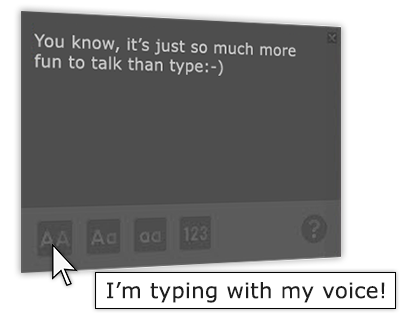
LilySpeech is truly a joy to use. Click or press Ctrl+D and start dictating absolutely anything on your computer in real time.
In this demonstration we see:
- Text dictated in real time
- Customization of display in settings
- Various punctuation
The ease of use is amazing and the time savings will have you jumping for joy!