
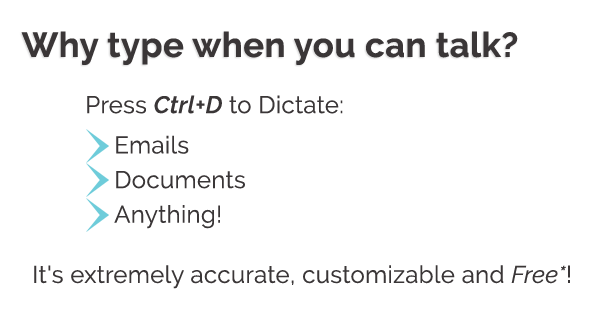



Why Type When You Can Talk?
LilySpeech is a FREE* speech to text dictation application for Windows with support for 51 languages! Experience the freedom of typing with your voice today.

Type With My Voice In Scrivener
Typing with your voice in Scrivener means using speech recognition software to convert spoken words directly into your manuscript, eliminating manual keyboard entry and letting you compose at the speed of natural speech. For writers, journalists, and content creators who spend hours drafting, editing, and organizing long-form work, this capability transforms productivity by reducing typing fatigue and accelerating the writing process.
LilySpeech makes this possible with a free, cloud-based speech-to-text dictation application for Windows that integrates seamlessly with Scrivener and any other text editor on your desktop. Powered by Google's Chrome speech recognition engine, the software delivers 99.5% accuracy in real time, supporting 51 languages and enabling custom word recognition for specialized vocabulary. Because the processing happens in the cloud rather than on your local machine, you get professional-grade dictation without expensive software licenses or the resource drain of local speech processing.
Whether you're blocked by repetitive strain injury, managing multiple projects with tight deadlines, or simply want to write faster and more naturally, voice dictation removes the barrier between thought and text. This guide explains how to effectively use voice recognition with Scrivener, what makes this approach work, and how to maximize accuracy and efficiency.
How Voice Recognition Works With Scrivener
Scrivener is a comprehensive writing application designed for long-form projects-novels, screenplays, research documents, and complex multi-part works. It organizes your content into binders and folders, allowing you to draft, research, and revise all within one interface. When you type with your voice in Scrivener using LilySpeech, the dictation software runs alongside Scrivener on your Windows desktop, capturing everything you speak and converting it to text in real time.
The technical process is straightforward: LilySpeech listens through your microphone, sends the audio stream to Google's cloud-based speech recognition engine, and returns the transcribed text to your active window-in this case, your Scrivener document. Because LilySpeech operates at the system level, it works wherever your cursor is active, whether you're composing in the main editor, adding notes in the inspector, or filling in document metadata.
The 99.5% accuracy rating means that for every 1,000 words you dictate, you can expect approximately five errors-mostly homophones, punctuation misplacement, or unusual proper nouns. This is substantially better than manual typing error rates, especially over extended writing sessions when fatigue sets in. The software learns your speech patterns and accent the more you use it, improving recognition over time.
Key technical specifications that matter when setting up voice recognition for writing work include:
- Cloud-based processing eliminates the need for local CPU resources, so older or less powerful machines run dictation smoothly
- Real-time transcription means you hear and see your words appear as you speak, enabling natural iteration and self-correction
- Multi-language support (51 languages) lets you switch between languages mid-document or use vocabulary from multiple languages without reconfiguration
- Custom word recognition allows you to teach the software character names, place names, technical terms, or industry jargon specific to your work
Maximizing Accuracy When You Type With Your Voice In Scrivener
Achieving consistently high accuracy requires attention to your environment, microphone quality, and speaking technique. While LilySpeech handles the heavy computational lifting, your setup determines whether dictation becomes your primary writing method or remains a secondary tool.
Microphone quality is the first variable you control. A dedicated USB headset with a noise-canceling microphone significantly outperforms built-in laptop microphones or standalone Bluetooth mics, especially in office environments with ambient noise. The microphone should be positioned consistently-about two to three inches from your mouth, slightly off to the side rather than directly in front-to maintain stable audio input. Because cloud-based recognition analyzes acoustic properties in real time, consistent microphone placement and minimal background noise produce the most reliable results.
Speaking technique matters more than many writers expect. Rather than rushing through words as though reading aloud, effective dictation requires the same deliberate pacing you use when speaking to a colleague you want to understand clearly. Enunciate word boundaries, especially when switching between words that might sound similar in continuous speech. When dictating punctuation or formatting, say the punctuation aloud: "The deadline was last Friday comma which created problems period" rather than pausing and expecting the software to infer structure.
Environmental control directly impacts recognition accuracy. Quiet rooms produce cleaner audio signals and reduce the likelihood of the speech engine misinterpreting background noise as speech. If you work in a shared space or open office, a noise-canceling headset with a quality microphone becomes essential. Test your setup by dictating a few sentences and reviewing the output before diving into a full writing session.
LilySpeech's custom word recognition feature deserves deliberate use. When you dictate character names, brand names, technical terms, or specialized vocabulary repeatedly, train the software by correcting misrecognitions the first few times they occur. The software learns these corrections and applies them going forward, so the fifth time you mention your protagonist's name or a medical procedure, the software gets it right without correction. This is particularly valuable for writers in specialized fields-medical fiction, legal thrillers, technical documentation, or science fiction with invented terminology.
Workflow Integration and Practical Techniques
Effective voice dictation in Scrivener requires integrating the technology into your existing writing process rather than trying to replace your entire workflow overnight. Most writers benefit from a hybrid approach: draft new material through voice dictation, then use keyboard and mouse for revision, editing, and structural reorganization.
Start by using dictation for first drafts and new scene composition, where capturing raw thought matters more than perfect prose. The lack of keyboard friction means you can explore ideas fluidly without pausing to correct typos or fidget with formatting. Because you're hearing your words aloud as you compose, you naturally catch rhythm problems, awkward phrasing, and unclear passages that you might miss when typing silently. This built-in feedback loop often improves draft quality immediately.
Reserve detailed editing, footnote insertion, and structural rearrangement for keyboard work. Scrivener's snapshot feature, split-screen editing, and binder navigation all work better with mouse and keyboard precision. The goal is using voice dictation where it excels-capturing and expressing ideas quickly-and using traditional input methods where they provide better control.
Practical techniques that experienced voice writers employ include:
- Dictate standing up or while walking to maintain energy and natural speech rhythm, which improves both pace and accuracy
- Read your dictated text aloud immediately after composition to catch errors and awkward phrasing before moving forward
- Use voice commands to control Scrivener itself-dictation software can trigger simple keyboard shortcuts, letting you navigate folders or start new documents without touching the keyboard
- Maintain a glossary document within your Scrivener project for recurring terms, character names, and proper nouns, referring to it when you need to verify correct spelling during editing
- Build in short dictation sessions rather than eight-hour marathons; 60 to 90 minutes of focused dictation followed by 15 minutes of editing often produces better results than longer stretches
The transition from keyboard writing to voice dictation typically takes two to four weeks of regular practice. Your brain needs time to adjust to composing in speech rather than typed language, and you need experience with the software's particular recognition patterns and your own speaking style. Many writers report that this adjustment period feels awkward initially, then becomes natural and faster than typing ever was.
LilySpeech makes this transition frictionless because it's free-you can experiment without financial commitment and discover whether voice dictation fits your writing process. The cloud-based architecture means installation takes minutes, and because it's lightweight, it runs alongside Scrivener without slowing your computer down.
If you write frequently, struggle with typing fatigue, or want to accelerate your drafting speed, voice dictation in Scrivener is worth exploring. LilySpeech provides the accuracy, language support, and custom vocabulary tools that professional writers need to make this approach their primary composition method. Reach out to learn more about getting started or to ask specific questions about how voice recognition works with your particular writing projects.
Frequently Asked Questions
Can I use LilySpeech to type with my voice in Scrivener on Windows?
Yes. LilySpeech is a free, cloud-based speech-to-text application for Windows that works with Scrivener and any other Windows text editor. It captures your speech in real time and converts it to text with 99.5% accuracy, delivered directly to your active Scrivener document.
How accurate is voice dictation for long writing projects?
LilySpeech achieves 99.5% accuracy, meaning roughly five errors per 1,000 words dictated. For most writers, this translates to minimal post-dictation editing, especially after the software learns your speech patterns and you train it on specialized vocabulary unique to your work.
What microphone do I need for accurate voice typing in Scrivener?
A dedicated USB headset with noise-canceling capability produces the best results. Position the microphone two to three inches from your mouth, slightly to the side. Built-in laptop microphones and Bluetooth mics are less reliable, particularly in environments with background noise.
Does LilySpeech support multiple languages for Scrivener dictation?
Yes. LilySpeech supports 51 languages and allows you to switch between languages without reconfiguration. This makes it ideal for writers working in multilingual projects or those composing in a non-English language.
Will voice dictation slow down my Scrivener performance?
No. LilySpeech uses cloud-based processing, so the speech recognition computation happens on external servers rather than your local machine. The application is lightweight and does not consume significant CPU resources, making it compatible with older or less powerful Windows computers.
How long does it take to adjust to composing with voice dictation?
Most writers adapt within two to four weeks of regular practice. The adjustment involves learning to speak your thoughts rather than type them, and becoming familiar with the software's recognition patterns. Many writers find voice dictation becomes faster and more natural than typing once the initial learning curve passes.

99.5% Accurate!
LilySpeech is powered by Google Chrome’s amazing speech to text service which is 99.5% accurate. If you’ve been sending text messages with your voice on your Android phone, then you already know how well it works.
Watch the video below to see a demonstration of just how accurate LilySpeech is.
Custom Words
You can customize LilySpeech to recognize custom words. This might be business names, web addresses, the correct spelling of peoples names, industry specific terms. Anything you wish.
Even for people in specialized Industries, LilySpeech shines with its ability to recognize unusual vocabulary.
Lightweight
LilySpeech is an extremely lightweight application which will not slow down your computer or hog your computer’s memory.
This is made possible by the fact that the actual speech-to-text conversion occurs in the cloud and does not use your local machines resources.

See it in Action!
LilySpeech Speech Recognition Demo
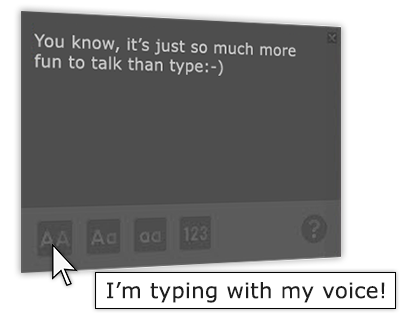
LilySpeech is truly a joy to use. Click or press Ctrl+D and start dictating absolutely anything on your computer in real time.
In this demonstration we see:
- Text dictated in real time
- Customization of display in settings
- Various punctuation
The ease of use is amazing and the time savings will have you jumping for joy!