



Why Type When You Can Talk?
LilySpeech is a FREE* speech to text dictation application for Windows with support for 51 languages! Experience the freedom of typing with your voice today.

Voice To Print Software Free
Converting your spoken words into printed text using voice to print software free means you can dictate emails, documents, and web searches directly from your Windows desktop without typing a single character. LilySpeech makes this possible with a cloud-based application that listens to what you say and transforms it into accurate text in real time, powered by Google's speech recognition engine.
Whether you are a writer facing typing fatigue, a busy professional managing back-to-back tasks, a student taking notes during lectures, or someone with mobility limitations who needs hands-free operation, this guide will walk you through getting started with free speech-to-text dictation software and making it part of your daily workflow.
Free voice-to-text tools eliminate the barrier of cost while delivering the accuracy professionals rely on. With 99.5% accuracy and support for 51 languages, there is no reason to settle for manual typing anymore.
Step 1: Download and Install LilySpeech on Your Windows Device
Begin by visiting the LilySpeech website and downloading the application to your Windows computer. The installation is straightforward and requires no advanced technical knowledge. Because this is cloud-based dictation software, you do not need powerful local processing resources or significant storage space. Simply follow the on-screen prompts, and within moments, the application will be ready to use.
Once installed, open LilySpeech and allow it to access your microphone. This permission is essential for the speech recognition software to hear your voice. Your microphone settings should already be configured on your Windows device, but if you encounter any issues, check your system audio settings to ensure the correct microphone is selected as your default input device.
Step 2: Choose Your Language and Set Up Custom Vocabulary
LilySpeech supports 51 languages, so you can dictate in your preferred tongue or switch between multiple languages as needed. After launching the application, select your language from the available options. This step ensures that the voice recognition software understands your pronunciation and regional accent accurately.
Next, take advantage of custom word recognition to improve accuracy in your field. If you work in medicine, law, technology, or any specialized industry, you can add terminology and industry-specific vocabulary that the software may not recognize by default. For example, a medical professional might add diagnostic terms, while a legal practitioner could add case law references. This personalization transforms basic dictation software into a tool tailored precisely to your work, pushing accuracy even higher and saving time on corrections.
Step 3: Position Your Microphone and Begin Dictating
Place your microphone at a consistent distance from your mouth, typically 6 to 12 inches away, and in a relatively quiet environment. Background noise reduces accuracy, so choose a location where you can speak clearly without excessive ambient sound. Click the dictation button in LilySpeech to begin recording your voice.
Speak naturally and at a steady pace. You do not need to pause unnaturally between words or over-enunciate like a robot. The speech-to-text engine is designed to understand conversational speech. As you talk, your words appear on screen in real time, allowing you to see the results immediately. If you need to edit anything, simply pause recording, make corrections, and resume.
Step 4: Use Voice Commands for Formatting and Editing
Free speech-to-text dictation software becomes truly powerful when you learn basic voice commands. Instead of reaching for your keyboard to format text, you can say commands like "new paragraph," "capitalize that," or "delete that word." These commands are built into LilySpeech and work across emails, documents, web searches, and other text-based content. This hands-free workflow keeps your momentum going and prevents the constant context-switching that slows productivity.
Practice a few commands at a time to build confidence. Most users find that within a few minutes of dictation, voice commands become second nature, and they stop reaching for the keyboard altogether.
Step 5: Export or Paste Your Dictated Text
Once you finish dictating, your text is ready to use. LilySpeech allows you to copy and paste your dictated content directly into email clients, word processors, web browsers, or any application where you normally type. The text transfers cleanly without formatting issues, so you can continue working immediately. For longer documents, you can dictate in sessions and compile the results, or dictate continuously and edit afterward.
Because LilySpeech runs in the cloud, your dictations are secure and you can access them from your Windows device anywhere you have internet connectivity. There is no need to manage files or worry about losing your work.
Step 6: Review Accuracy and Refine Your Custom Vocabulary
After using LilySpeech for a few sessions, review the accuracy of your transcriptions. Most misunderstandings occur with industry-specific terms or proper nouns. When you notice a word or phrase that the voice recognition software consistently misinterprets, add it to your custom vocabulary with the correct spelling. Over time, this refinement makes your dictations increasingly accurate and faster to edit.
The beauty of this voice-to-print approach is that the more you use it, the better it performs for your unique needs. Unlike premium speech recognition software that requires expensive licenses, LilySpeech improves through simple adjustments that take seconds to make.
Getting started with free dictation software from LilySpeech removes the friction from writing and document creation. Whether you are drafting a novel, composing professional emails, recording research notes, or simply want to give your hands a break, this workflow delivers measurable productivity gains. If you have questions about how LilySpeech can fit into your specific workflow, reach out to the team. They are here to help you discover the freedom of hands-free writing.
Frequently Asked Questions
Is voice to print software free really accurate enough for professional work?
Yes. LilySpeech delivers 99.5% accuracy powered by Google's speech recognition engine, making it suitable for professional writing, legal documents, medical notes, and technical content. Custom vocabulary features ensure specialized terminology is recognized correctly, and accuracy improves as you refine your word list over time.
Can I use free dictation software with multiple languages?
Absolutely. LilySpeech supports 51 languages and allows you to switch between them. Many multilingual professionals and international users rely on this feature to dictate in their preferred language without needing separate applications or subscriptions.
What do I need to get started with voice to print software free?
You need a Windows computer, an internet connection, and a microphone (built-in or external). LilySpeech is cloud-based, so it does not require powerful hardware or significant disk space. Download the application, grant microphone access, and you are ready to start dictating.
Does LilySpeech work for emails and web searches or just documents?
LilySpeech works for any text-based content on your Windows desktop, including emails, search queries, documents, chat messages, and forms. Because it integrates at the system level, you can dictate directly into virtually any application where you would normally type.

99.5% Accurate!
LilySpeech is powered by Google Chrome’s amazing speech to text service which is 99.5% accurate. If you’ve been sending text messages with your voice on your Android phone, then you already know how well it works.
Watch the video below to see a demonstration of just how accurate LilySpeech is.

Custom Words
You can customize LilySpeech to recognize custom words. This might be business names, web addresses, the correct spelling of peoples names, industry specific terms. Anything you wish.
Even for people in specialized Industries, LilySpeech shines with its ability to recognize unusual vocabulary.
Lightweight
LilySpeech is an extremely lightweight application which will not slow down your computer or hog your computer’s memory.
This is made possible by the fact that the actual speech-to-text conversion occurs in the cloud and does not use your local machines resources.

See it in Action!
LilySpeech Speech Recognition Demo
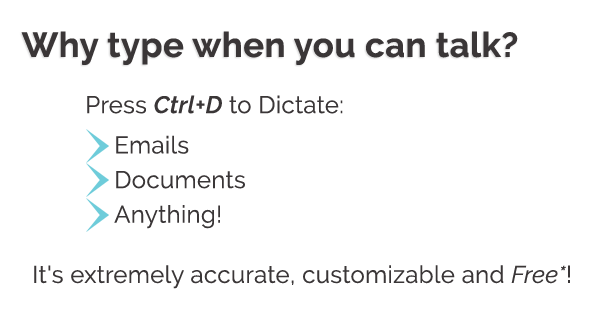
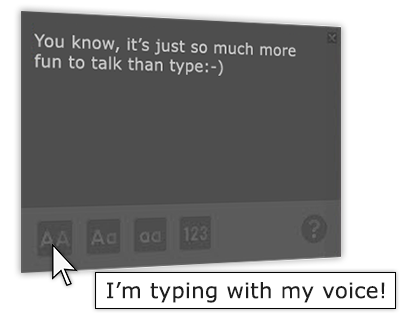
LilySpeech is truly a joy to use. Click or press Ctrl+D and start dictating absolutely anything on your computer in real time.
In this demonstration we see:
- Text dictated in real time
- Customization of display in settings
- Various punctuation
The ease of use is amazing and the time savings will have you jumping for joy!