



Why Type When You Can Talk?
LilySpeech is a FREE* speech to text dictation application for Windows with support for 51 languages! Experience the freedom of typing with your voice today.

Voice To Text For Outlook
Voice to text for Outlook lets you compose emails, calendar notes, and messages by speaking instead of typing. LilySpeech is a free, cloud-based dictation application for Windows that integrates seamlessly with Outlook, converting your spoken words into text in real time with 99.5% accuracy powered by Google's speech recognition engine. Whether you are managing a heavy email load, drafting urgent messages, or simply want to reduce typing fatigue, this guide walks you through setting up and using this hands-free productivity tool.
By the end of this guide, you will have LilySpeech running on your Windows desktop and ready to dictate directly into Outlook. The entire setup takes just a few minutes, and no special hardware beyond a working microphone is required.
Step 1: Download and Install LilySpeech on Your Windows Device
Start by visiting the LilySpeech website and downloading the application. Because LilySpeech is cloud-based, it does not burden your computer with heavy processing tasks. The lightweight installer is quick and straightforward. Once downloaded, run the installation file and follow the on-screen prompts. You will be guided through a simple setup wizard that takes less than a minute to complete.
After installation finishes, LilySpeech will appear in your system tray and be ready to use. You do not need to restart your computer or configure complex settings. This is by design, LilySpeech prioritizes simplicity so you can start dictating right away.
Step 2: Grant Microphone Permissions and Test Your Audio Input
Before you begin dictating into Outlook, Windows will ask for permission to use your microphone. This is a standard security step. Click "Allow" when prompted, and LilySpeech will gain access to your audio device. If you are using an external microphone, USB headset, or built-in laptop microphone, any of these will work equally well.
Test your microphone by opening the LilySpeech application and clicking the microphone icon. Speak a few sentences at normal volume and pace. You should see your words appear on the screen in real time. If nothing appears, check that your microphone is not muted and that it is properly connected. Most modern Windows devices have microphone access enabled by default, so this step usually requires no troubleshooting.
Step 3: Open Outlook and Position Your Cursor in a Text Field
Launch Outlook and navigate to the email compose window, calendar event, or note where you want to dictate. Click in the text field where you would normally type your message. The cursor should be blinking and ready for input. This works in the subject line, message body, event details, and any other text field within Outlook.
LilySpeech works with Outlook because it treats your voice input as keyboard text. Think of it like this: instead of your fingers pressing keys, your voice is speaking those keys into existence. This means you can dictate anywhere in Outlook that accepts typed text, without any special Outlook plugin or configuration needed.
Step 4: Activate Dictation and Speak Your Message
With your cursor positioned in Outlook, activate LilySpeech by clicking the microphone button in the system tray or using the keyboard shortcut (which you can customize in settings). The microphone icon will change to indicate that recording is active. Begin speaking your email, message, or calendar details at a natural pace. Speak clearly, as you would in a conversation, and let LilySpeech handle the rest.
LilySpeech supports 51 languages, so if you work in multiple languages, you can switch between them without restarting the application. The software also learns custom words and industry-specific terminology through its custom word recognition feature. This is especially valuable for professionals in medical, legal, technical, and specialized fields who need accurate transcription of jargon that standard dictation tools might misunderstand. Click the microphone button again or press the keyboard shortcut to stop recording. Your spoken words will appear instantly in your Outlook message.
Comparison: Voice Dictation vs. Manual Typing for Outlook Users
| Factor | Voice Dictation with LilySpeech | Manual Typing |
|---|---|---|
| Speed | 120-150 words per minute average speaking rate | 40-80 words per minute average typing rate |
| Physical strain | Minimal; hands and wrists remain at rest | Repetitive strain risk with heavy email use |
| Accuracy | 99.5% with LilySpeech powered by Google | Varies by typist; subject to typos |
| Cost | Free with LilySpeech | Free but slower; premium software is expensive |
| Language support | 51 languages available | Keyboard layout dependent |
Step 5: Edit and Send Your Message
Once your dictation is complete, review the text in Outlook for any minor corrections. Because LilySpeech achieves 99.5% accuracy, edits are usually minimal. You can click and type to fix any words that were misheard, add punctuation, or adjust phrasing. Use the mouse or keyboard to navigate and make changes just as you would with any typed message.
After reviewing, format your email (add bold, italics, links, or attachments) and send as usual. LilySpeech works in the background and does not interfere with Outlook's native formatting, scheduling, or sending features. Everything happens on your Windows desktop, and because LilySpeech is cloud-based, your dictation is processed securely without storing your audio files locally.
Pro Tips for Best Results
- Speak naturally and at a steady pace; rushed or mumbled speech reduces accuracy.
- Use voice commands to add punctuation: say "period" at the end of a sentence, "comma" within phrases, or "new paragraph" to break up longer messages.
- Add custom words in LilySpeech settings if you frequently dictate industry terms, proper names, or technical vocabulary. This trains the software to recognize these words accurately every time.
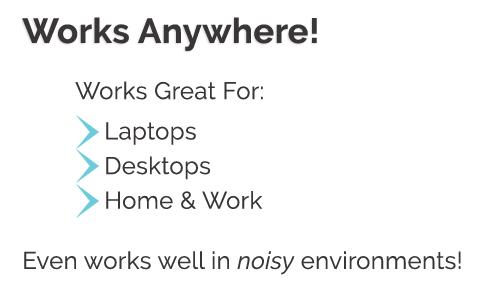
- Minimize background noise for clearest transcription. A quiet office or home setting works best.
- Test your microphone on a practice message first if you are new to voice dictation, so you become comfortable with the pacing and style.
LilySpeech transforms how busy professionals, journalists, students, and content creators approach email and document creation. By converting spoken words into text in real time, you reclaim hours each week that would otherwise be spent typing. The software eliminates the need for expensive premium dictation tools while delivering professional-grade accuracy and multilingual support.
If you spend your day composing emails, drafting documents, or managing heavy written communication, voice to text for Outlook can reshape your workflow. LilySpeech makes this technology accessible, free, and simple enough for anyone to use on day one. Ready to try dictating your next email? Visit LilySpeech today to download the application and experience hands-free productivity on your Windows device.
Frequently Asked Questions
Does voice to text for Outlook work on my Mac?
LilySpeech is designed specifically for Windows devices. Mac users have access to built-in voice dictation through the operating system, but LilySpeech's enhanced features, 51-language support, and 99.5% accuracy are available only on Windows desktop and laptops.
What microphone do I need for voice to text in Outlook?
Any microphone that works with Windows will work with LilySpeech. This includes built-in laptop microphones, USB headsets, external microphones, and wireless options. The key is a clear audio input; a dedicated USB headset often provides the best results for professional dictation.
Can I use voice to text for Outlook with other email or productivity software?
Yes. Because LilySpeech works at the system level on Windows, it converts your speech to text anywhere you can type. This includes Gmail, Microsoft Teams, Google Docs, and any other text field in any application. It is not limited to Outlook alone.
Is my voice data stored or recorded by LilySpeech?
LilySpeech uses cloud-based processing powered by Google's speech recognition engine. Audio is processed securely and not stored locally on your computer. For detailed privacy information, review LilySpeech's privacy policy on their website.
How accurate is voice to text for Outlook with technical or medical terms?
LilySpeech achieves 99.5% accuracy overall, and its custom word recognition feature allows you to teach the software your industry-specific terminology. After adding specialized words like medical diagnoses or technical jargon to your custom dictionary, the software learns to transcribe them correctly on subsequent dictations.
Can I dictate in multiple languages in Outlook with LilySpeech?
Yes. LilySpeech supports 51 languages and allows you to switch between them. You can change the language setting before you begin dictating, making it ideal for multilingual professionals who compose emails in different languages throughout the day.
What happens if LilySpeech mishears a word in my Outlook email?
Since dictation appears in real time, you can pause, click to position your cursor, and manually type or delete any misheard words before sending. With 99.5% accuracy, corrections are typically minimal, and most emails require little or no editing after dictation is complete.

99.5% Accurate!
LilySpeech is powered by Google Chrome’s amazing speech to text service which is 99.5% accurate. If you’ve been sending text messages with your voice on your Android phone, then you already know how well it works.
Watch the video below to see a demonstration of just how accurate LilySpeech is.

Custom Words
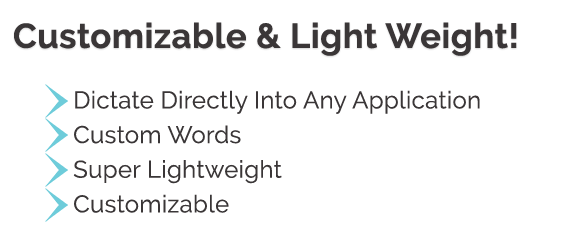
You can customize LilySpeech to recognize custom words. This might be business names, web addresses, the correct spelling of peoples names, industry specific terms. Anything you wish.
Even for people in specialized Industries, LilySpeech shines with its ability to recognize unusual vocabulary.

Lightweight
LilySpeech is an extremely lightweight application which will not slow down your computer or hog your computer’s memory.
This is made possible by the fact that the actual speech-to-text conversion occurs in the cloud and does not use your local machines resources.

See it in Action!
LilySpeech Speech Recognition Demo
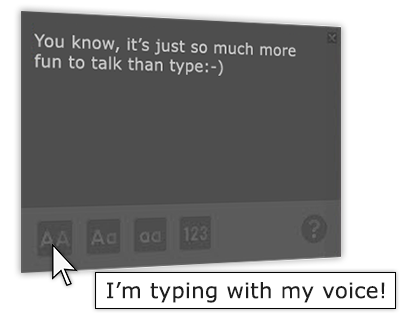
LilySpeech is truly a joy to use. Click or press Ctrl+D and start dictating absolutely anything on your computer in real time.
In this demonstration we see:
- Text dictated in real time
- Customization of display in settings
- Various punctuation
The ease of use is amazing and the time savings will have you jumping for joy!